

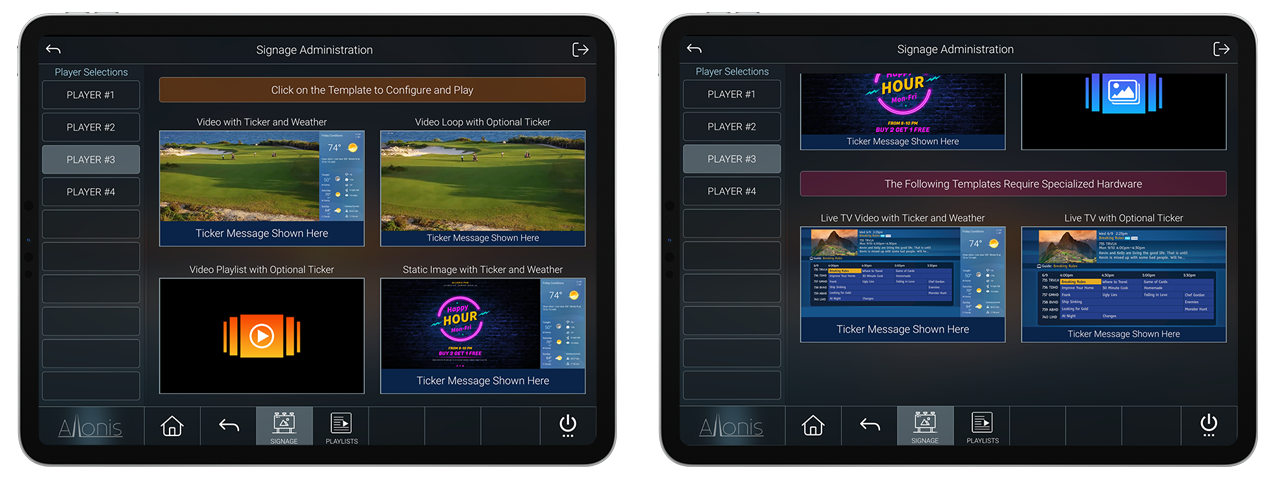
ADMIN HOME PAGE
This page is where you can select and configure the various signage templates. The list of available signage players is displayed in the left hand column. Click on a player in the list to make it the "active" player. Once a player becomes active all digital signage commands will be sent to that player.
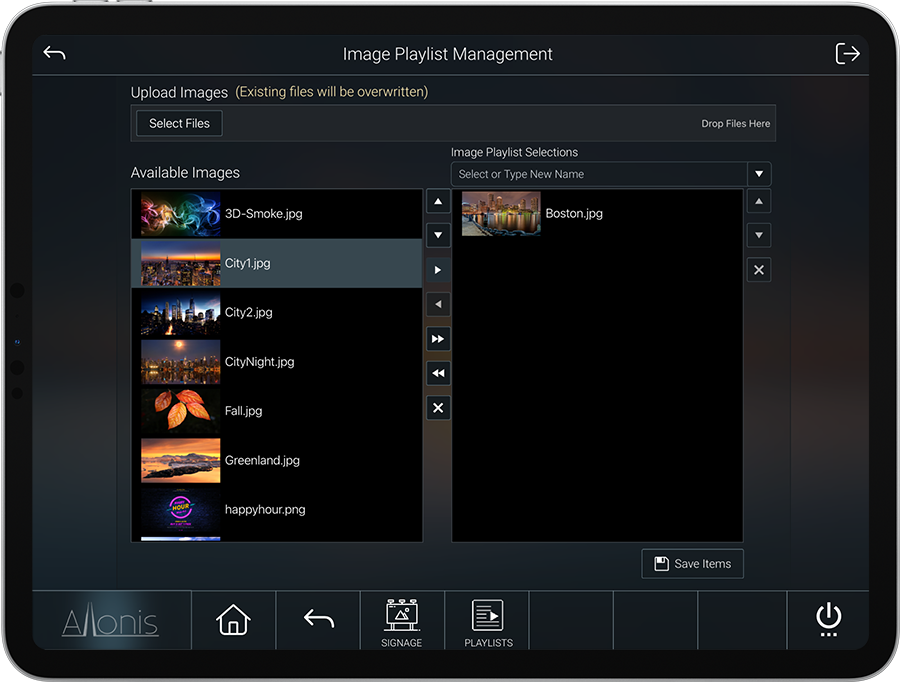
MEDIA MANAGEMENT
This page is where you can manage the digital assets for the signage players. Two columns of assets are displayed. The left column is a list of all images that have been uploaded to the server. The right column lists all the video files that are available. You can upload new media to the server by clicking on the "Select Files" button or simply dragging and dropping the media onto the upload bar with the label "Drop Files Here". When uploading images they must be in standard .png, .jpg, .gif or .svg format. The size of the image should by 1920 x 1080 pixels. If the image is of a different size it will be automatically scaled to fit on the display. Uploaded videos must be in standard mp4 format that is universally playable on all web browsers.
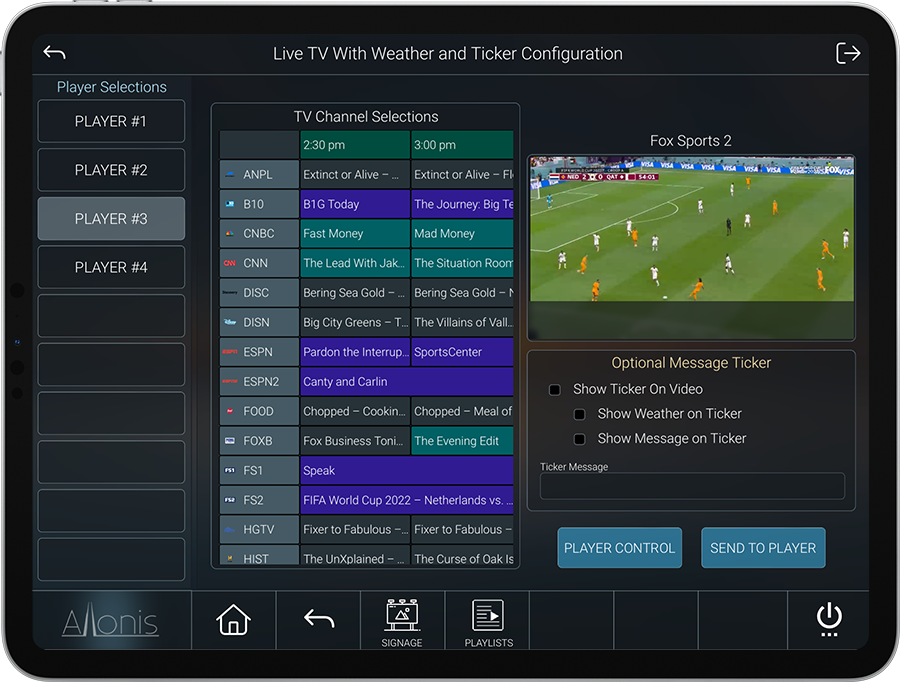
LIVE TV WITH TICKER & WEATHER TEMPLATE
This page will display live TV being captured by the Allonis streaming server along with a column with an overview of today's weather. There is a bottom ticker tape element that allows you to show a custom message and/or the current weather forecast along the bottom of the display. Pressing the "Send to Player" button will immediately change the display.
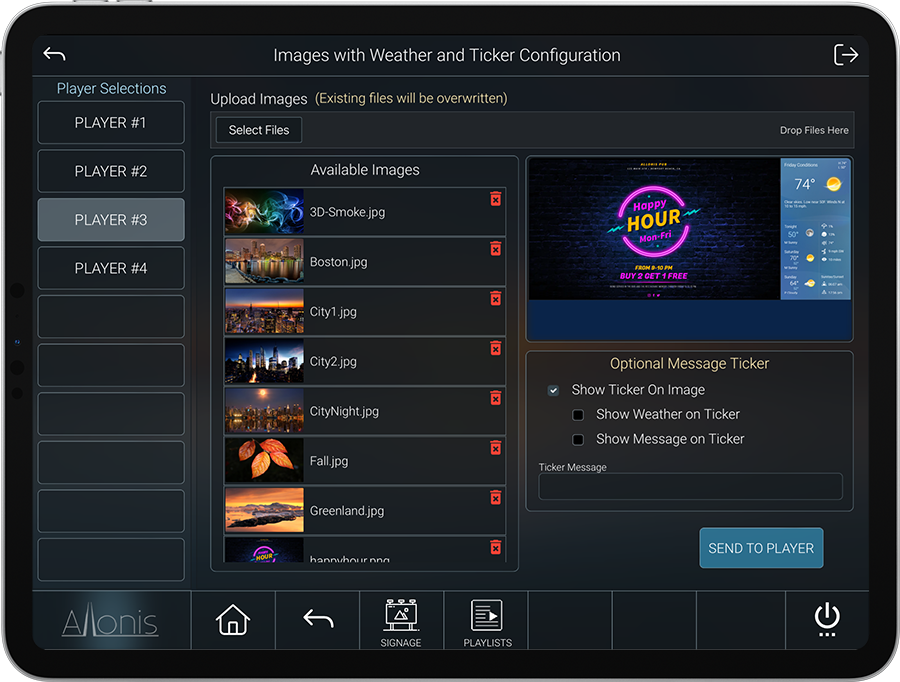
STATIC IMAGE WITH TICKER & WEATHER TEMPLATE
This page shows a static image that has been uploaded to the signage server. Click on the image in the list to select it and also change the ticker options as well. Press "Send to Player" to update the selected player.
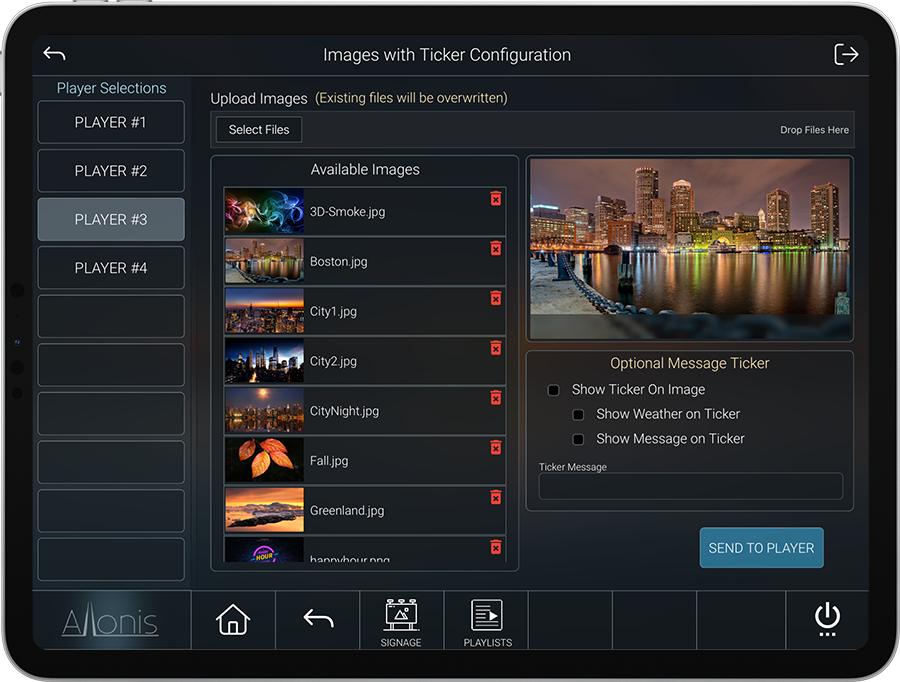
STATIC IMAGE TEMPLATE
This page will show one of the uploaded images full screen on the selected player. Click on the image to be displayed and then "Send to Player" to update the player.
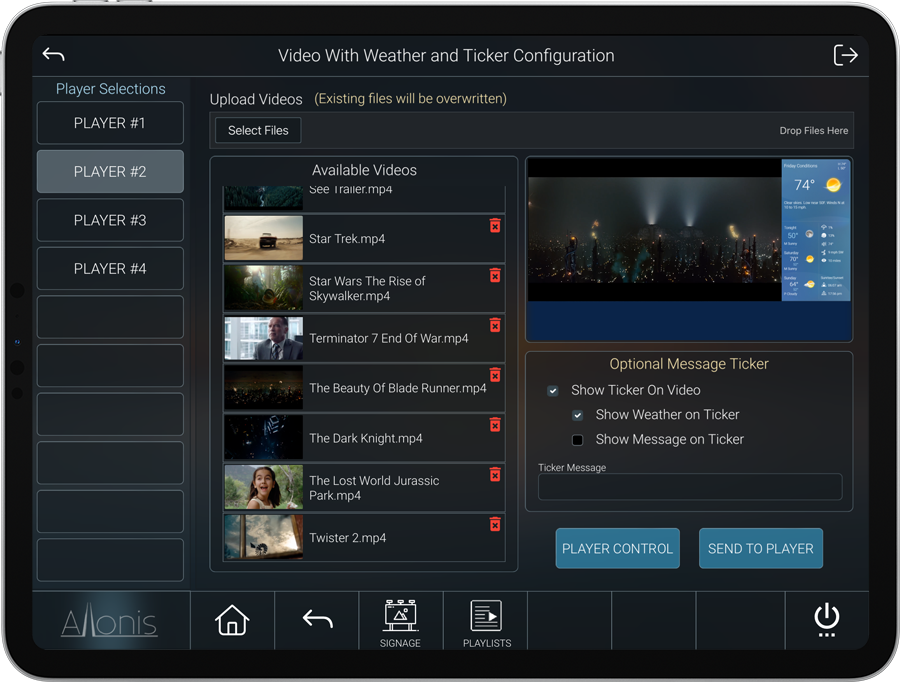
VIDEO WITH TICKER & WEATHER
This page will display video along with a column with an overview of today's weather. There is a bottom ticker tape element that allows you to show a custom message and/or the current weather forecast along the bottom of the display. Pressing the "Send to Player" button will immediately change the display.
VIDEO LOOP
Uploaded video will play in a continuous loop full screen on the selected player.
Details:
The myVehicle driver integrates most common vehicle data protocols to create variables within myServer that can be used as event triggers or as a real time updated Digital Dashboard.
How it works:
The Allonis Vehicle Interface Device plugs into the vehicle's On Board Diagnostic port. For most vehicles, this standard connector will be within a foot of the steering wheel. The VID then connects via USB or bluetooth to Allonis's scan tool software running on a Raspberry Pi4 (called the "Vehicle Interface Controller". The VIC processes all messages and sends them to myServer via an ethernet MQTT message. myServer listens for the MQTT message and upon receipt, the myVehicle driver updates variables within myServer. Once there, a myServer user interface can real time display the values.
The VIC can be configured to send data in English or Metric values. myServer can ask the VIC to send all data elements supported for that vehicle for initialization. Thereafter, the VIC will send only data that has been changed since last transmission. Data elements can be configured for how often it is processed. These two features can tune the system for update frequency vs. too much data.
Compatibility:
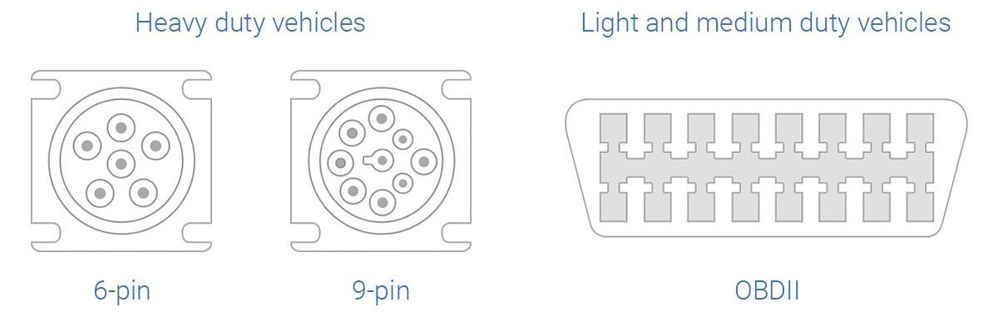
Allonis supports VID1 for OBDII vehicles. This is all 1996 and newer passenger car and most trucks sold globally.
Shortly, the VID1 will also support newer J1938 vehicles that are commonly heavy duty trucks and diesel powered Recreational Vehicles. A round 9 pin Deutsch connector adapter is used for these vehicles.
VID2 will support older J1708 vehicles using either a 9 or a 6 pin round Deutsch connector. VID2 will also support J1938 protocol concurrent with J1708 as many mid year RVs use both.
VID3 will support many marine powertrains (TBD).
VID4 will support RV-C CAN communication Recreational Vehicles. This can be used to control many cross manufacturer available electronic devices commonly installed in newer RVs. Slides, Leveling systems, Heating, Air Conditioning, Awnings, Inverters, Generators, etc will be supported.
VID5 will support other proprietary RV communication networks.
All of the VIDs will communicate through the Vehicle Interface Controller software. VIC can also run on the myServer Pi4 for smaller systems.
- Runs full screen
- Enables myServer to monitor and control Android Device hardware (microphone, speaker volume, GPS, etc)
- Manages Web UI sessions so multiple launches won't create multiple sessions that ultimately hurt performance.
myUI is essential to enable several myServer features:
- Voice Recognition
- Geo Boundry Events
- Intercom
- You should see myUI.apk on your myServer PC's desktop.
- Plug in your Android Tablet into the USB port of myServer PC. You may have to select "Connect as Media Device" on your tablet for your tablet to show in your Windows file explorer.
- On Tablet (or Phone), click "Settings", the "Security", then ensure "Unknown Sources" is checked.
- Your Tablet will show itself in myServer PC as a new storage drive (let's call it drive "M") in File Explorer
- Drag the myUI.apk file from the desktop to the "Android" folder in Drive M. (Note if "Drive M" is on the device storage area or on an SD card that may be plugged in)
- You can disconnect the tablet from myServer PC's USB port.
- On the Tablet, launch "My Files" app. Look in the "Device Storage" folder.
- Find the "Android" file folder.
- You will see the myUI.apk file in there.
- Click on myUI.apk and open it.
- Accept all installation questions (security, do you want to install, etc).
- Ensure your Tablet is on the WiFi network that has connectivity to the myServer PC.
- Launch the myUI App on the Tablet.
- On launch, the app should say "GET STARTED". Click it.
- Then click "DISCOVERY"
- Wait up to a minute for the myServer PC path to appear. Under that, click on the Application link.
- You should see multiple HTML App names. These come from /myserver/HTML folder.
- Select the App name that is closest to the tablet device ("myUI.Tablets 1024x768 App" as example)
- Click "NEXT"
- You can change the clientname here. (Note, this should match your settings for "Web Client" in myAgent radio settings if you have already set this up - optional). Client names MUST start with a letter. You may use any combination of the letters A..Z and numbers 0.9 to define the client name. You CANNOT include spaces or punctuation marks!
- Default is to enable Voice Recognition (requires optional license on myServer) and Enable Geo Location (optional on myServer)
- Click "Save and Launch App"
- Discovery is responsible for finding the server and defining what app gets associated with the device. Once those settings have been configured then the next time the app is launched the app uses those settings to grab the app and run it. The app then launches in a 4 step process.
- Grabs the styles.css from the apps css folder,
- Grabs the scripts.js from the apps js folder
- Grabs the custom.js from the apps js folder and if all that was successful
- Load the index.html file from the apps root folder. all this comes from the local myServer.
- You should now see the chosen HTML app running full screen on the Android device. You may need to provide your login name and password if myServer is setup for signon.
- Your Android device should ask permission for the App to use your location. Approve this and the Android panel should disappear. If you reset config of the app (see below) or upgrade the App, you will need to approve again.
- You may notice an Android bar at the top of the screen. Slide it down, process the request (security or other) and slide it back up. The myUI app should now be full screen.
- To Reconfigure the app, when on the myServer network: Click on the Menu and then click on "Allonis". At the bottom right, click on "Reset Config". The app will relaunch and initiate Discovery again. If you are NOT on the myServer network, then Clear all Data from the myUI.apk app (Settings / Applications / Application Manager / myUI / Storage / Clear Data), and relaunch it (note, the above instructions are for Android 6.0.1 OS. If your OS is different, you will need to find your devices location for these functions).
NOTE: Discovery will only work if your myServer network DNS name is set with the server's IP address. This will be addressed in a myServer update coming soon.
myServer regularily sends a UDP broadcast out on port 1900. myUI, when on same network hears that request. This provides the information for myUI to request from myServer the full connection and list of web apps that exist via a TCP request to myServer. Your network must be configured to allow these communications for Discovery to work. If UDP is not enabled on the network, you must do a manual configuration to have myUI "find" myServer to complete the rest of installation configuration.
The new client commands (as of 8/21/2017) are:
DimScreen|0..100 or WebCmd|{{clientname}}~DimScreen|0 to 100
ScreenSaver|On,Off or WebCmd|{{clientname}}~ScreenSaver|On or Off
Locking the app in Landscape or Portrait is done during the configuration of the App.
Developer USB Debugging - how to turn on (Android OS only)
Navigate to Settings > About Phone > scroll to the bottom > tap Build number seven (7) times. You'll get a short pop-up in the lower area of your display saying that you're now a developer. 2. Go back and now access the Developer options menu, check 'USB debugging' and click OK on the prompt.
Plug your Android device into your myServer PC's USB connection. You might get a prompt on both the PC and on the Android device. You want to allow USB Debugging.
Here is more info and pics: https://www.howtogeek.com/129728/how-to-access-the-developer-options-menu-and-enable-usb-debugging-on-android-4.2/
Welcome to Netflix TV and Movies
Netflix is Allonis's application that displays the Netflix streaming movie and TV show availability and plays on a remote PC.
System Requirements
- myServer5
- Microsoft Windows (Vista, 7, 8, 10)
- Playback PCs with fast, persistent Internet connection (for streaming media)
- Netflix streaming account user ID / Password
- Netflix driver
- Desktop Chrome installed on player PC. This includes the "Cadmium Player" that handles the Digital Rights Management.
- myAgent installed on the player PC.
Installation
1) Install the latest version of myServer from myInstaller
2) Install the latest version of the Netflix app and driver
3) Install the latest version of the myAgent on all your playback devices
4) In the Netflix App, add your Netflix streaming account username / pass and select if you are a US or Canada customer.
5) Click Initialize Local Database. After that is complete (see the Event Log), click Update Local Database. This will bring to your myServer PC the current Netflix program guide and coverart. This can take 45 minutes the first time (depends on your Internet connection speed).
6) Define your player PCs in the Family Manager in the AV Family. Type a Friendly name (that is unique - this is what will show in your Zone selection), select the NetflixDriver, select Netflix Player, type what Zone or room it will be used in, the Level or Floor (optional) and the IP address of the player PC. Select Default IP Port (6300 is used). Configure all next player PCs in the same way. There is no limit to the number of agents you can define. However, Netflix imposes a limit of 6 unique playback devices per account.
Restart myServer.
Configure all Player PCs:
1) Open latest Chrome Desktop app on the player PC and go to netflix.com
2) Login with your streaming account info and ensure "Remember Me" is selected. Chrome may ask "Do you want to remember this password?", select Yes.
3) Playback a movie to ensure your account is setup correctly and there are no issues with the Netflix HTML5 player.
4) Ensure latest myAgent is installed from myInstaller and running on all Player PCs. No configuration is required for myAgent.
Usage
Launch the Netflix user interface screen on your control device (your Android phone or tablet as example).
Tools menu presents a list of the remote PCs where you will be playing the Netflix media that you configured within the Family Manager for each of these PCs. Select one.
Select a movie to watch in the Selections menu
If the movie / show has Episodes, choose one.
Click the Play button. You should soon see the Player PCs Chrome window open full screen and play your chosen movie.
The Remote Control user interface allows for control of the Player PCs transport controls. It also allows you to shut down the Chrome browser remotely by clicking the Power Off button.
enjoy your movie!
How it works
The Netflix catalog is brought down to the myServer PC and is updated several times a day.
The Play command tells myServer to send the "Open Chrome" command to the Player PCs myAgent.
myAgent opens Chrome and goes to Netflix.com and invokes the stream you requested.
The Transport controls sends Windows Keystroke commands to the Chrome instance running Netflix.
The Power Off command has myAgent shut down the Chrome instance via a Windows command.
Help
We have noticed that earlier Norton Antivirus will prevent Windows Keystrokes from connecting to Chrome. This was addressed by installing latest Norton 360 antivirus. Even shutting down Norton didn't fix the issue until it was upgraded.
Ensure your firewall(s) are allowing communication between myServer and myAgent on the Remote PC
Ensure you aren't using too many concurrent Netflix playerback instances
IMPORTANT NOTE
Browsing performance is gained by creating a local cache of the entire Netflix catalog on your myServer PC. The first time you install the plugin you will see a process called "NetflixCollector.exe" running in your task manager. This is the program that is responsible for downloading the Netflix metadata into the local cache. The fist time this program runs it can take up to 30 minutes depending on your Internet connection speed to download the entire catalog. After that this program will run every 4 hours to check for updates to the online catalog. Netflix makes constant updates to its catalog throughout the day. You should make sure you update your cache frequently. The collector will create a log of any errors it encounters in the myServer\Logs folder.
Sample Client Scenes
When you install the sample web pages you get one of the best Netflix browsers in the industry. The user interface is exactly like myMovies. You can browser by cover art and have the ability to filter and search on a host of different parameters.
Main Browser - Netflix\Netflix_Console_Thumbs
This is the primary browser window to the entire Netflix Catalog.
NFClient1.png
Filter Selections
Allows you to filter listings to narrow your movie choices.
NFClient2.png
Content Search
If the quick filters cannot find what you want then you can use the powerful search engine to find exactly what you are looking for. (Provided Netflix offers it.)
NFClient3.png
Movie Details
This is a full details scene where you can look at all of the metadata associated with the movie.
NFClient4.png
Remote Control
The Netflix Silverlight movie player has a very limited set of controls. The remote control scene will allow you to control the playback on the remote PC.
NFClient5.png
TV Episodes
When the browser detects that you are looking at a movie or TV show with episodes then the Episodes tab will be enabled and you will be able to browse and play the individual episodes associated with the show.
NFClient6.png
myServer Commands:
InitDatabase
Script Usage
Netflix App|InitDatabase
(Literal): Netflix App|InitDatabase
Description
Deletes all existing media from the local database.
UpdateDatabase
Script Usage: Netflix App|UpdateDatabase
(Literal): Netflix App|UpdateDatabase
Description: Launches the collector and begins an immediate update of the database.
Browse
Script Usage: Netflix App|Browse~command
(Literal): Netflix App|Browse~First
Parameters
Command = #,First,Last,Prev,Next
Description: Commands the movie browser to advance in the direction specified.
GetMovie
Script Usage: Netflix App|GetMovie~dvdNumber
(Literal):Netflix App|GetMovie~12345~1
Parameters
dvdNumber = The unique dvdNumber for this movie.
DiscNumber = Optional Defaults to "1". The disc number in the set.
Description:Looks up the movie in the database and sets the "Netflix_Selection" series of server variables.
BrowseFilter
Script Usage: Netflix App|BrowseFilter~Direction
(Literal): Netflix App|BrowseFilter~Next
Parameters Direction = Prev or Next.
Description Moves the Filters page in the specified direction.
SetFilter Script Usage Netflix App|SetFilter~FilterItem~FilterValue (Literal) Netflix App|SetFilter~Genre~Action Parameters FilterItem = The core filter to use. FilterValue = The value for the applied filter. Description Sets the browser filter parameters to only display movies that match the specified parameters. ToggleScreening Script Usage Netflix App|ToggleScreening~DvdNumber (Literal) Netflix App|ToggleScreening~12345~1 Parameters dvdNumber = The unique dvdNumber for the movie. Description Toggles the movie in and out of the screening queue. PlayMovie Script Usage Netflix App|PlayMovie~dvdNumber (Literal) Netflix App|PlayMovie~1234 Parameters dvdNumber = The unique dvdNumber of the movie. Description Plays the specified movie / episode. SetActiveThumb Script Usage Netflix App|SetActiveThumb~Number (Literal) Netflix App|SetActiveThumb~1 Parameters Number = The thumbnail number of the movie to set as active. Description Sets the specified movie thumbnail as active. MovieSearch Script Usage Netflix App|MovieSearch~Command~Value (Literal) Netflix App|MovieSearch~NextPage Parameters Command = The page direction command Next, Previous, AlphaVal. Value = The value when using the command AlphaVal. Description Performs the search as specified by the user selections stored in server variables. Keyboard Script Usage Netflix App|Keyboard~Command (Literal) Netflix App|Keyboard~A Parameters Command = The letter or number of the keyboard key press to process. Description Processes the keystroke coming in from the search keyboard. ToggleContainsFilter Script Usage Netflix App|ToggleContainsFilter (Literal) Netflix App|ToggleContainsFilter Description Toggles the search filter for "Contains" to "Starts With" when performing searches. AddToScreening Script Usage Netflix App|AddToScreening~dvdNumber (Literal) Netflix App|AddToScreening~11221 Parameters dvdNumber = The unique dvdNumber for the movie. Description Adds the selected movie into the screening queue. RemoveFromScreening Script Usage Netflix App|RemoveFromScreening~dvdNumber (Literal) Netflix App|RemoveFromScreening~112345~1 Parameters dvdNumber = The unique dvdNumber for the movie. Description Removes the specified movie from the screening queue. SetBrowseFilter Script Usage Netflix App|SetBrowseFilter~class~value (Literal) Netflix App|SetBrowseFilter~Genre~Action Parameters Class = The filter class Value = The filter value. Description Sets the filter values for the movie browser. ClearScreeningQueue Script Usage Netflix App|ClearScreeningQueue (Literal) Netflix App|ClearScreeningQueue Description Removes all movies from the screening queue. GetNextPlayer Script Usage Netflix App|GetNextPlayer (Literal) Netflix App|GetNextPlayer Description Advances to the next media player. GetPrevPlayer Script Usage Netflix App|GetPrevPlayer (Literal) Netflix App|GetPrevPlayer Description Advances to the previous movie player. SetActivePlayer Script Usage Netflix App|SetActivePlayer~Number (Literal) Netflix App|SetActivePlayer~1 Parameters Number = The number or alias for the active player for the client. Description Sets the active player for the current client. InitBrowser Script Usage Netflix App|InitBrowser~Mode~ItemsPerPage~CoverWith~CoverHeight~ThumbWidth~ThumbHeight~MoviePlayerNumber (Literal) Netflix App|InitBrowser~Thumbs~18~288~383~112~168~1 Parameters Mode = The browser mode Thumbs or List. ItemsPerPage = The number of items to show per page. CoverWidth = The desired cover art width. CoverHeight = The desired cover art height. ThumbWidth = The desired thumbnail width. ThumbHeight = The desired thumbnail height. MoviePlayerNumber = The index into the MovieZones cycle states for the desired movie player. Description Used in the scene start up macro for the thumbnail and list view browser pages. InitDetails Script Usage Netflix App|InitDetails~CoverWidth~CoverHeight (Literal) Netflix App|InitDetails~288~383 Parameters CoverWidth = The desired cover art width. CoverHeight = The desired cover art height. Description Used in the scene start up macro for the movie details scenes. InitFilters Script Usage Netflix App|InitFilters~ItemsPerPage (Literal) Netflix App|InitFilters~18 Parameters ItemsPerPage = The number of items per page. Description Used in the scene start up macro for the filters selection. Beamer Script Usage Netflix App|Beamer (Literal) Netflix App|Beamer Description Is used as a feedback mechanism on the remote control scenes. RemoteBrowse Script Usage Netflix App|RemoteBrowse~Command (Literal) Netflix App|RemoteBrowse~Next Parameters Command = Direction to browse. Up, Down, Left, Right, Prev, Next, # Description Commands the remote control browser to movie in the specified direction. SetCredentials Script Usage Netflix App|SetCredentials~Username~Password~Location (Literal) Netflix App|SetCredentials~HappyNetflixUser~MyPassword~US Parameters Username = Your Netflix Username Password = Your Netflix Password Location = (Optional) Location. Use US or CA. Will default US Description Command is used to update your Netflix username and password. The credentials will automatically be passed to each Netflix agent when they connect. Power Script Usage Netflix App|Power~State (Literal) Netflix App|Power~Off Parameters State = On or Off Description Turns the active player off or on. Play Script Usage Netflix App|Play (Literal) Netflix App|Play Description Toggles Play/Pause on the active player. Pause Script Usage Netflix App|Pause (Literal) Netflix App|Pause Description Toggles Play/Pause on the active player. Rewind Script Usage Netflix App|Rewind (Literal) Netflix App|Rewind Description Rewinds the current movie. Forward Script Usage Netflix App|Forward (Literal) Netflix App|Forward Description Advances the current movie. Stop Script Usage Netflix App|Stop (Literal) Netflix App|Stop Description Stops playback of the current movie. Fullscreen Script Usage Netflix App|Fullscreen (Literal) Netflix App|Fullscreen Description Toggles Full screen / Window mode. Focus Script Usage Netflix App|Focus (Literal) Netflix App|Focus Description Brings the player into focus if lost. myServer Variables The Netflix App plugin will auto generate variables in myServer based on the settings you have entered. All the server variables created will start with the prefix Netflix_.