



Viewing the weather forecast is part of everyone's daily activites. With Weather you will be able to see at a glance the weather report for the day as well as up to ten days in advance.
Features
- Complete 10 Day Weather Report
- 48 Hour by Hour Forecast (requires optional "Cloud Data Subscription")
-
30 minute updates else on demand. Hourly data will always show the entire day.
-
Weather Alerts
- Configure an unlimited number of cities in any Country
- Ability to define your own custom weather maps
- Marine data for the large waterway nearest to your city
Weather app is included in the myServer software license!
Installation
Select and download the Weather App from the myServer Software Updater. This app includes many graphics so it can take some time to download on a slow network connection.
Once installed, click on Management / Applets / Weather / Configure in Dashboard.
Type your zip code or city name in the field lower left side. Click Submit
Click the dropdown to the right of the Select City to Add field that appeared.
Select your city from the list and click Submit.
Your city should have been added to the list of your cities. The first time you do this it will be enabled by default. You can edit that city to add Marine data for large body of water facing cities.
The units of measure can be set to Metric using the Command Builder
You can click the Update function in Command Builder to force an update. Typically the weather data will be ongoing downloaded a few times per day as long as the myServer controller has access to the Internet.
You can view the weather raw data in the Variables view. Simply type "weather" and filter the results. Here you can see the data that is available to populate your weather scenes and automation rules. Allonis's optional Irrigation app uses this data as well to change watering schedules.
Create a new macro:
activate-source.weather
Macro|
// Source activation macro for Weather!
// SetActiveSource creates the following server variables!
// activesource_sourceid_<clientname>, activesource_source_<clientname>, activesource_sourcename_<clientname>!
// activesource_image_<clientname>, activesource_macro_<clientname>, activesource_type_<clientname>!
// activeroom_<clientname>!
//!
SetActiveSource|Weather!
//!
LoadScene|weather!
// fini
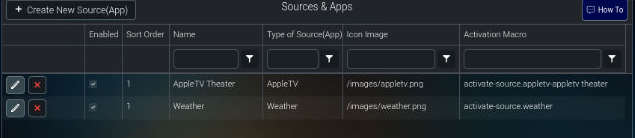
Create a new Source in the Sources & Apps webpage
Enabled, Sort order 1, Name = Weather, Type of Source app = Weather, Icon, /images/weather.png
Activation macro required name: activate-source.weather
Save
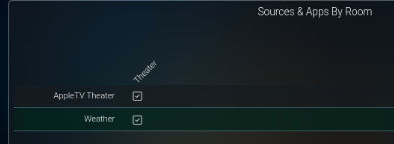
Go to Sources & Apps by Room webpage:
Enable the Weather source for the room(s) you want it to appear in:
Updates
 Update for 8/31/2023:
Allonis's contract with the Weather Data service we have historically used has changed their pricing model. This gave us the choice of : charge users an annual subscription fee or 2) change providers to maintain a free data source (that was never free to Allonis). We opted for Plan B.
So, what does this mean...a new V6 driver is available today. Document what cities you are getting weather data for. Then, Update the Weather app from Software Updater and also update to the new Moonlight Template. Ensure your production use template is using a different name so it doesn't get overwritten. The old templates will show some data, but because the data changed, not all will be populated. So, you can use the latest Moonlight template as a master to update your custom template weather scenes. Issue a "delvariable|weather*" to remove all old weather data. Restart myServer which will auto create necessary variables and ultimately do a data update for your configured city.
What has changed in the data: We added Marine centric data. But lost Golf and Pollen data. Most all of the data stays intact.