



What's a ShotBox? It's a multi button user interface.
Who uses them: Mostly the audio and video recording industry. But they can also be used in manufacturing, home automation, bars and restaurants to provide a very easy to use interface to control the most common functions (like raise the volume or change the channel).
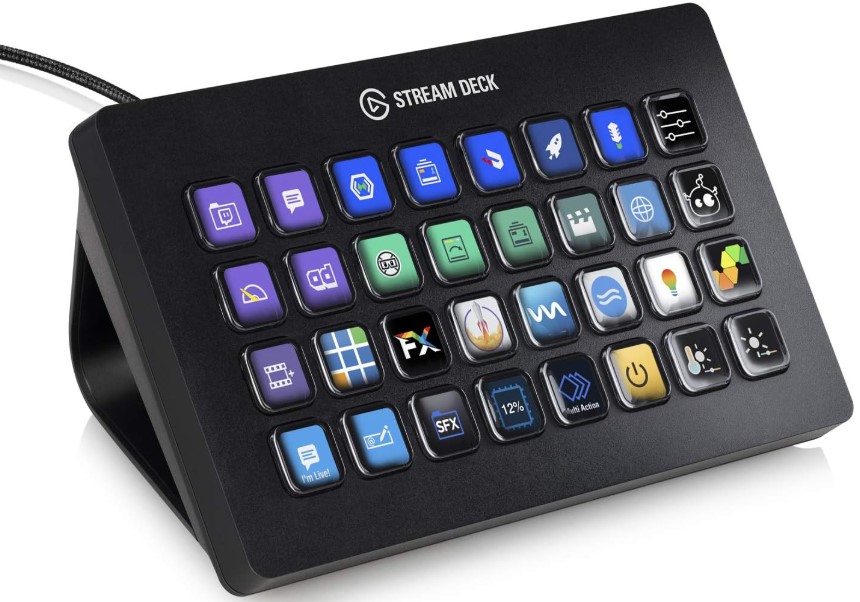
ShotBox in Action (shows a StreamDeck + controllering Allonis's Digital Signal Processors)
The button text and background color can be controlled via variable values set in myServer. The button pushes are received by myServer and can control "anything" that is supported by myServer's large list of device drivers (including within HomeAssistant or Harmony Hub etc)!
The Shotbox will support multiple brands of shotbox button hardware. Initially the ShotBox driver supports Elgado's neat StreamDeck line of interfaces.
What Can I Use a ShotBox for?
Allonis has used them for Sports Bar projects. Each button is associated with a "fight song". When the home team scores, the bartender clicks the chosen song's button, and the myServer media system plays that song over the music or game audio source device.
A ShotBox can augement the use of an "iPad" for control of a bar multimedia system for fast access of common controls (switch source to TVs, change channels, display "Kiss Cam", Pan / Tilt / Zoom the Cam, select a security cam to view, etc.).
Video or Music studios use them to automate common tasks or scenes for editing or live mixing.
How do they connect?
The StreamDeck USB connected devices can be connected to either a Windows PC or a Raspberry Pi, or a myServer Raspberry Pi controller directly.
So: StreamDeck interface <> USB cable <> Raspberry Pi <> ethernet (or WiFi) <> myServer controller <> devices to control
The new StreamDeck Studio is a POE powered ethernet device which further simplifies connection:
StreamDeck Studio <> ethernet POE switch <> myServer Controller <> devices to control.
Multiple StreamDecks can be used with one myServer controller (different rooms, or multiples in a room that has lots to control).
The USB StreamDecks can also be connected to the myServer controller via a powered USB / Cat5 extender cable. We have tested several and have ones that work for this application.
Installation
The ShotBox driver is installed from the myServer Software Updater.
Once the driver is installed, Configure it by adding the IP address for the ShotBox application (127.0.0.1 if ShotBox is installed on the local myServer controller - which is default).
Install the Shotbox controller from within the ShotBox Driver Configuration / Commands webpage. This can take a few minutes.
Restart myServer.
Connect the StreamDeck USB to the ShotBox app controller. For myServer 6, use a USB2.0 (black) connector as there is no need for the 3.0 speed.
Install Shotbox Satellite
On a Raspberry Pi (64 bit OS so no PiZero1 - PiZero2W works):
After this, you can use sudo satellite-update to change the version it has installed. Note: this is currently not fully implemented.
Note: This script will create a new user called satellite, which Satellite will be run as and will own the configuration.
Configuration
To be continued...