



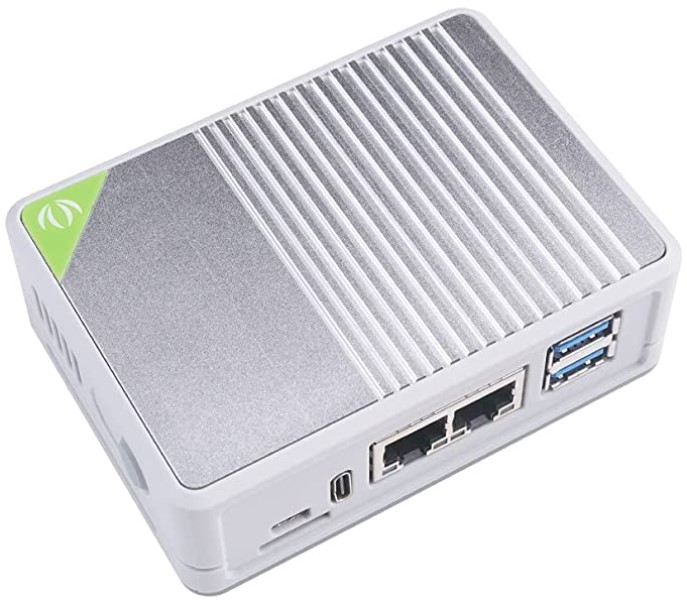
myServer 6 Router. It contains Allonis's flagship control system myServer 6. It also has networking hardware and software that helps solve the most common control system issues - ethernet networking
It does this by connecting to your current Internet accessible network via it's "LAN1". It gets it's IP address automatically from your existing router / firewall. This gives Allonis Internet access to manage the system remotely.
The myServer 6 Router has LAN2 port. This plugs into your Control System ethernet network switch. All of your control devices (Video matrix switch, IP TVs, IP2IR hardware, DirecTV receivers, Roku devices, mySignage Server and Players, myAudio players, myMediaPlayers etc) connect to this network switch.
The myServer 6 Router then manages all of those devices IP addresses by it's own DHCP server. myServer 6 can then automatically discover devices to assign into Device Groups (ie: DirecTV receivers) to help organize the system. Since myServer 6 then has all control device IP addresses, it can than communicate with them and control them (assuming compatibility).
All settings are then backed up within myServer's backup utilities in case of hardware failure.
The above will take hours of labor and frustration out of setting up the system.
Installation:
Open the package and put the myServer 6 Router on a shelf that has cool flowing air.
Connect the LAN1 (right most and closest to the USB 3.0 connectors) to the ethernet network switch that all of the control devices will be connected to.
Connect the LAN2 (furthest from USB)to the existing network that has Internet access.
Connect all DirecTV, IP2IR, Video Matrix Switch, Audio Matrix Switch, TVs to IP control etc to the control ethernet network switch.
Note: for Video Over IP systems...the Video ethernet switch does not connect directly to the Control network. The Video Controller bridges between the control network and the Video network (that all Transmitters and Receivers are on).
Picture of network
Power up the myServer 6 Router using it's included power supply. This power supply should be connected to a UPS so the power doesn't get cycled inadvertently.
You can optionally connect a microHDMI cable to a HDMI monitor, and connect a USB keyboard / mouse to the USB3.0 connector. This is the easiest setup as you will then have access to the Raspberry OS desktop. There is also an included browser to access myServer.
On initial launch, there are two messages to get through.
The first will be the EULA for TeamViewer. We use TeamViewer to remotely connect to your system for configuration and updating. Once this is done, you can disable TeamViewer from running. Certainly it will need to be re-enabled for us to access your system to provide future assistance.
The second message is from the Chrome browser that is installed. Just accept / unlock and all will work fine. This is not indicative of anything hostile.
"The profile appears to be in use by another Chromium process (8999) on another computer (myserver). Chromium has locked the profile so that it doesn't get corrupted. If you are sure no other processes are using this profile, you can unlock the profile and relaunch Chromium."
Configuring myServer 6 Router
You can go to a command line and run
sudo nmap -Pn -F 172.16.0.0/24
This will display all networked devices on the LAN2 (Control) network.
Allonis offers as a service to configure the Control network. We use this IP plan:
Gateway: 172.168.0.1
Subnet: 255.255.255.0
DNS: 172.168.0.1
Devices connected to the myServer 6 Router LAN 2 (Control network)
| Device Category | IP Range |
| myServer 6 LAN2 | 172.168.0.1 |
| IP2IR Devices | 172.168.0.10-20 |
| Video Matrix Devices | 172.168.0.21-30 |
| Audio Matrix Devices (DBX default node 30) | 172.168.0.31-40 |
| TV (IP controlled) | 172.168.0.41-120 |
| Lighting Controllers | 172.168.0.121-130 |
| DirecTV | 172.168.0.131-150 |