



myServer 6 now supports "Floating Windows". This is an extension of the Dashboard that allows multiple independent browser windows to access various myServer functions at a glance and the ability to "copy / paste" from one window to another. Very helpful, for example, to develop a control system configuration that requires access to Variable names, Macros, and myDesigner Windows application to configure advanced functions.
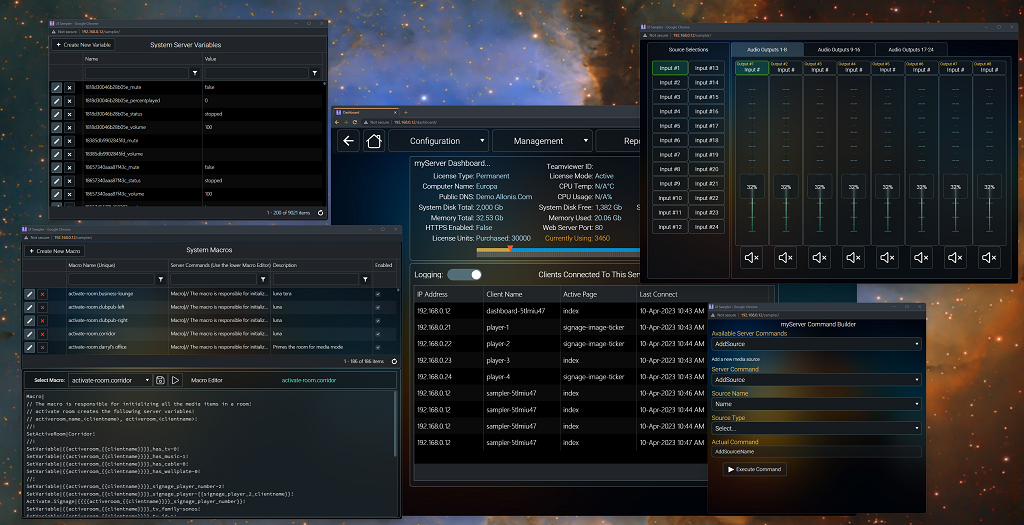
So, Floating Windows is also usable in end user interfaces:
Use case: You have a Pi Primary HDMI Monitor connected to a screen that is the vehicle "digital dashboard". Then, you connect a secondary touchscreen monitor that is in the center of the vehicle's dashboard. Launch the second webpage using this command: Popup|url~overlay~left~top~width~height
Note, the URL can be a completely different project from the first window. You can then independently control the independent user interfaces that are running on the same myServer and same Pi instance. Powerful stuff!
Linux Terminal in a browser
myServer includes the ability to open a webpage from any connected browser and open a terminal window where you can interact with the operating system. To use: go to Dashboard, click on "Utilities", and then click on "Linux Terminal". A browser will appear. You can right click and change the color of the font. Remember, the user ID is "allonis" and the password for myServer OS is also "allonis".
With great power comes great responsibility. Note that you are interacting directly with the operating system so you shouldn't issue commands that you aren't familiar with their result.
If you are not using the latest Master Image (you will see "unable to connect..." message in the embedded browser window) then:
In a local Linux Terminal window (you can access this from the Raspberry OS Desktop (requires keyboard / mouse to add or advanced users can use "Putty" from a second computer to the myServer controller's IP):
sudo apt install openssl shellinabox
sudo nano /etc/default/shellinabox
Modify the existing line to: SHELLINABOX_ARGS="--no-beep --disable-ssl"
sudo systemctl restart shellinabox
Note that the myServer controller OS user name is "allonis" and password is also "allonis".
If you want to enable SSH or VNC, from the terminal type raspi-config. Under interfaces, select and enable SSH and VNC.
Running Curl commands
1) Modifies the Run command to add an additional third parameter that will receive the output of the command for further processing.
Run|Program~Parameters~resultsVariable
2) Adds a new command called RunParseResults
RunParseResults|Program~Parameters~ResultsVariable
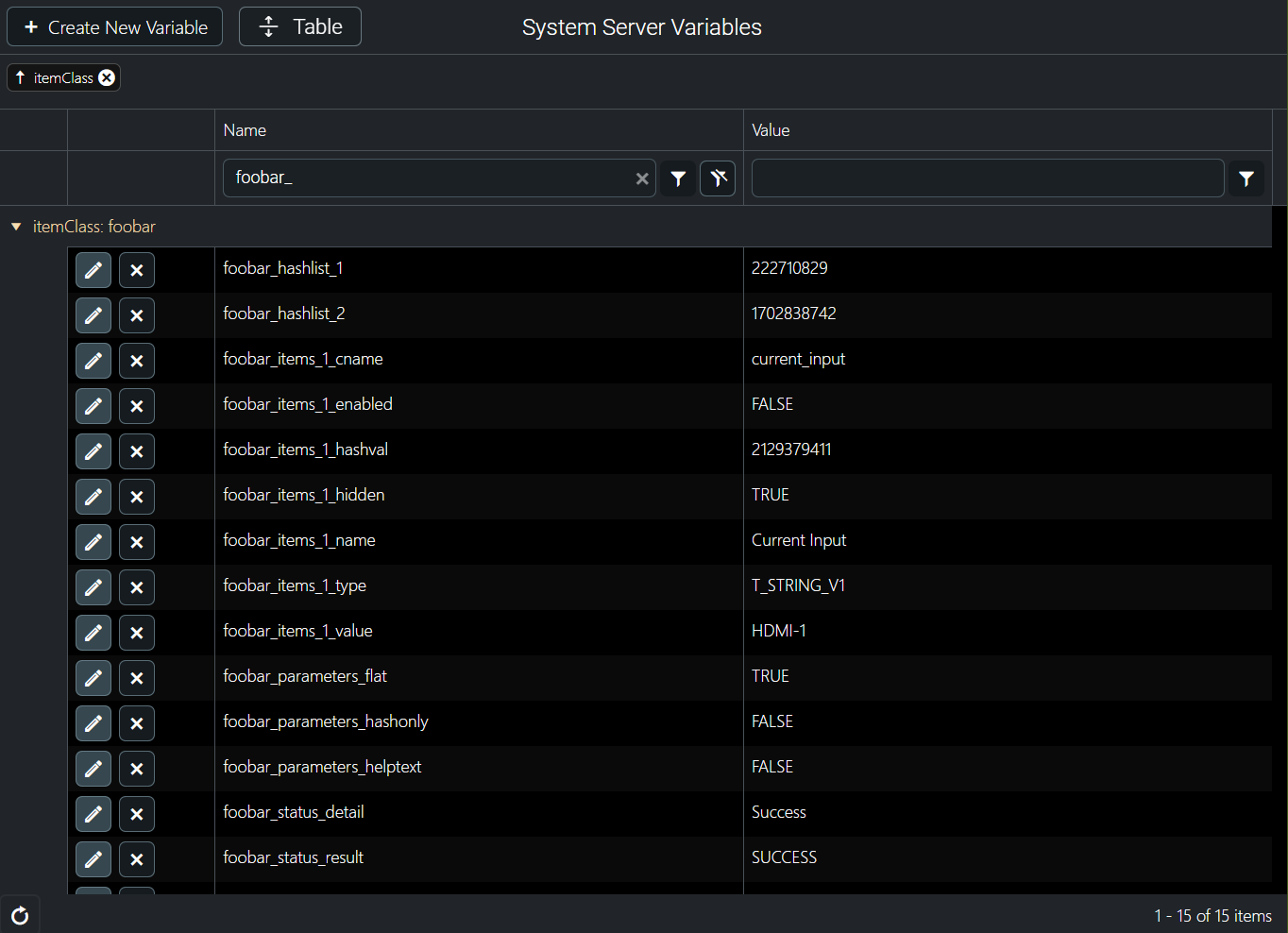
We tested RunParseResults using your previous json response as its output using RunParseResults|curl~params~foobar and this is what server variables were created. Probably a bit overkill but perhaps useful.
MQTT
MqttPublish works when you use a variable for the data. Here is an example in Mqtt:
Macro|
SetVariable|test_bjv~atv!
MqttPublish|theater/source~{{test_bjv}}!
Calling MqttPublish like this does work:
Macro|
MqttPublish|theater/source~atv!