




myServer 6's new irrigation application has an almost unlimited configuration capability to scale from the simplest of lawn irrigation tasks to the most complicated golf course system.
A fully functional irrigation user interface is included in myServer 6's "SheerUI" web template. This can be configured to control your system.
The application supports assigning a master valve for turning on a watering pump whenever a sprinkler zone is turned on.
What is very different with the myIrrigration app is that when a zone is turned on, this can be defined by a Macro (a sequence of instructions) that turns on a relay to open the valve. But it can also turn on TWO relays to turn on cascading sets of valves. This is very handy to add to existing irrigation plumbing to add new zones. The Macro can even turn on a light to note a particular zone is on, or using mySpeak command, tell you a zone will come in in "30 seconds" giving you time to move and not get wet :) A seperate Macro can be invoked when the Zone is to turn off. This is very powerful and can create very elaborate instructions if needed. A zone can also be cancelled if, for example, the security system is triggered that a car is parked in the way of the sprinkler zone. The implementations are unlimited.
Requirements
- myServer 6
- Allonis's 8 or 16 IP relay hardware(s) installed and configured and licensed for as many sprinkler zones as required.
- Relays wired to their corresponding pump control contact relay (high amperage relay) and the typically 24vAC water solenoid valves.
- Supported relays include myIPRelay, Sonoff / Tasmota relays, myPiRelays
The relays can be actuated by sending a command "Control|1~Relay~On" for testing.
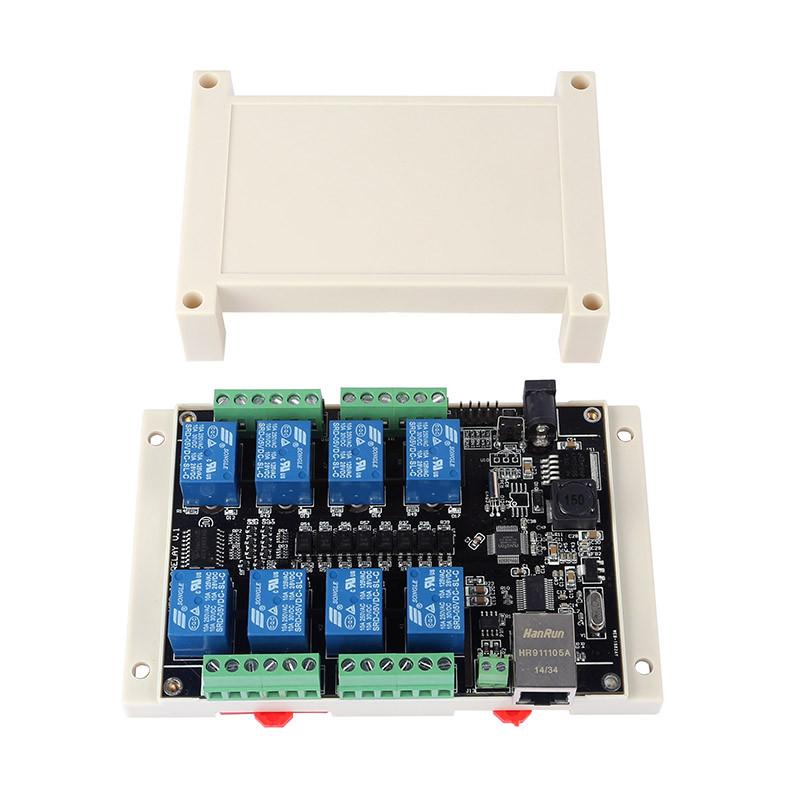
Wiring typical examples:
Most irrigation valves work off of 24v AC. The myIPRelay hardware can support this load.
Typical pump wiring (for use in lake):
24v AC power supply > relay 1 common > relay 1 normally open > wire to pump contact relay > pump contact relay low voltage trigger.
Typical water solenoid wiring:
24v AC power supply > relay 1 common > relay 1 normally open > wire to water solenoid 1 > water solenoid 1 > return wire > 24v AC power supply.
Tip: ensure the pump is never On when all valves are shut off so pump doesn't "dead head" which can burn out the pump. The pump should be considered as the "Master Pump" in the myIrrigation application. This will only turn on the pump when any zone is also turned on. And will shut the pump off when all valves are turned off. As a double protection, the system should also be wired so the pump is off when the common water valve wire is also off.
myIrrigation Configuration
Within the Irrigation App, click on Zones.
Create New Zone. Type an On Command that turns on the relay of your choice for that water solenoid. Do same for the Off Command. And add the name of the variable that tracks the status of that relay.
Here is an example
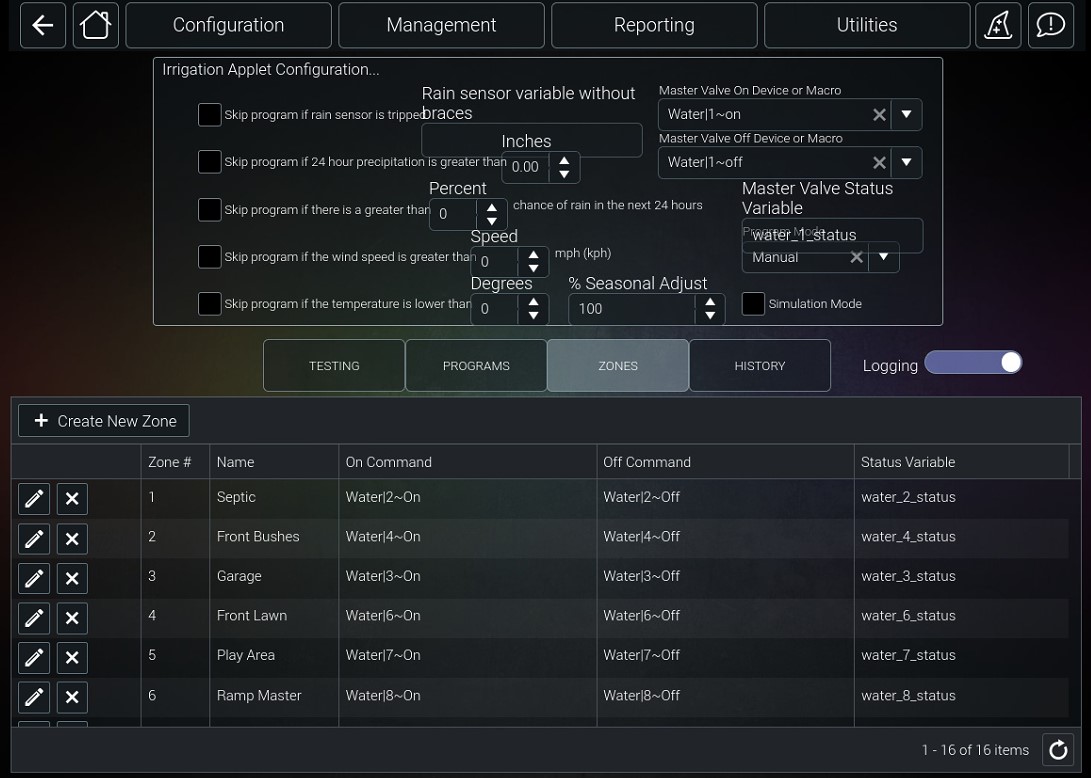
More typically the On command will look like:
Control|1~On
and the off:
Control|1~Off
and the status:
control_1_status
Advanced:
The above example On / Off / Status commands is an advanced implementation where the relays are on a secondary myServer 6 controller while the Irrigation App is on the primary myServer 6 controller.
There is a macro on the primary myServer controller called "water"
Macro|
SetVariable|water_<p1>_status~<p2>!
GetURL|http://192.168.1.94/api/docommand?command=run%7C16relind~7%20write%20<p1>%20<p2>&client=myServer6_1
Explanation:
The IP address is for the secondary myServer that is actually controlling the relays.
The "%7C16relind~7%20write%20<p1>%20<p2>" Is a command that runs in a "command line" to interact directly with the relays. This is custom for your particular system.
The "&client=myServer6_1" is the clientname example that the command needs to reference which client sent the command.
Create a Program:
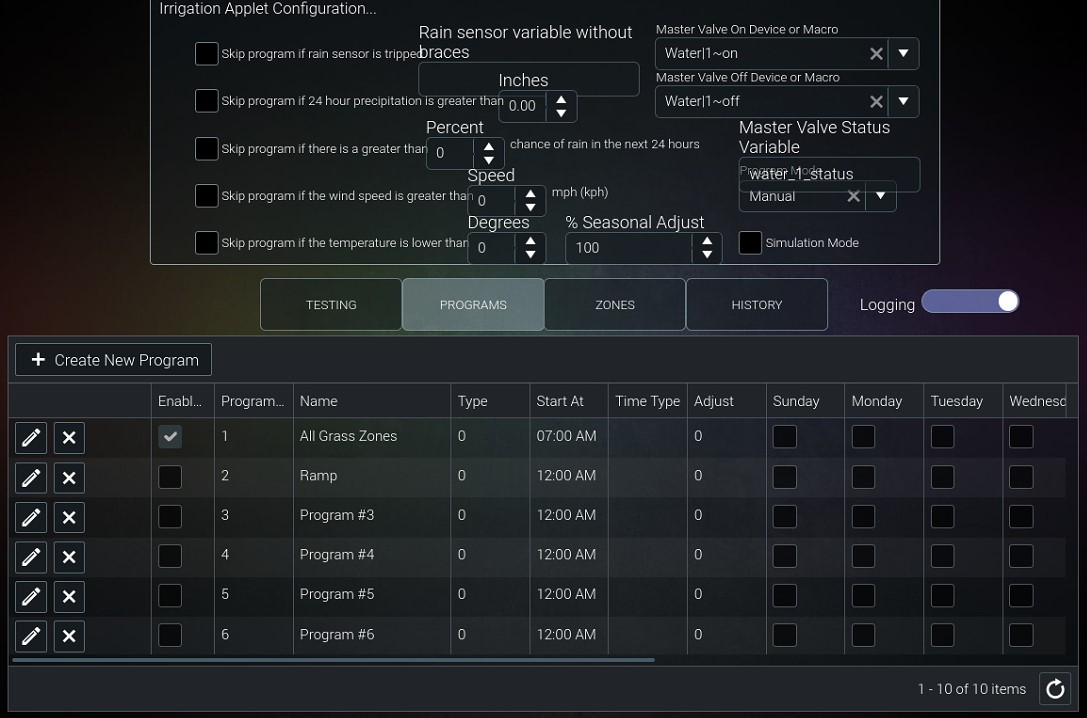
Once you have a Program defined, the rest of the configuration is done in the client user interface.
To access the client, in SheerTablets (example), from the Home page, click the More button (...)
Click the Irrigation link.
Here you can select to put the system in Automatic (on schedule), Manual or Off
You can also define a schedule by clicking the Define Watering Schedule button.
Or you can Manually trigger a program to run.