



myDigital Signage:
Allonis’ Digital Signage solution was developed to give our customers an easy-to-use program that fits the general-purpose needs for basic digital signage operations. You have the ability to display photos, videos and playlist along with custom messages and even weather on any of the TVs in the establishment.
You access the Digital Signage application by clicking the Digital Signage button on the System Management page of the main application. As shown previously on the prior pages. The direct URL typically is: http://name of bar/signageadmin
The main page of the Digital Signage looks like Figure 1.
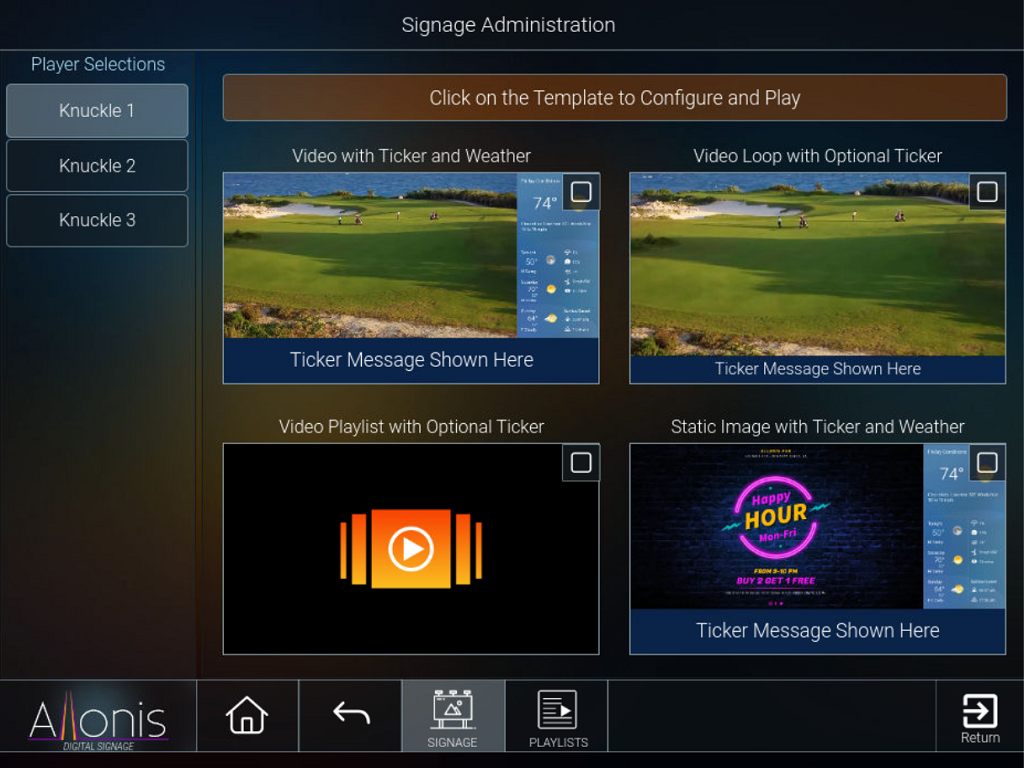
Figure 1
The list of Digital Signage Players is shown on the left column and the right column will display a thumbnail of a digital signage template to display on one or more players. You start be selecting the signage player by clicking on the player button on the left column.
There are six main signage templates to choose from and two templates that require additional hardware for the streaming of live TV content to the player. This document will concentrate on the primary six signage templates.
Signage Templates:
Video with Ticker and Weather:
This template will allow you to play a video of your choosing while also displaying the current weather on the right side.
You also have the option to define a ticker tape message that will scroll along the bottom of the display. The message can be any manually entered phrase or the current weather forecast or a combination of both. Click on the template picture to configure what is going to be displayed.
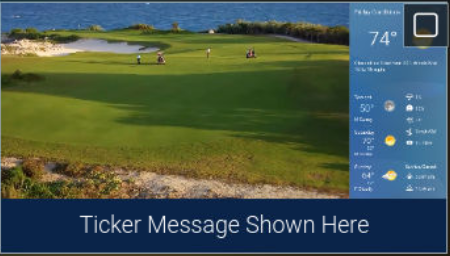
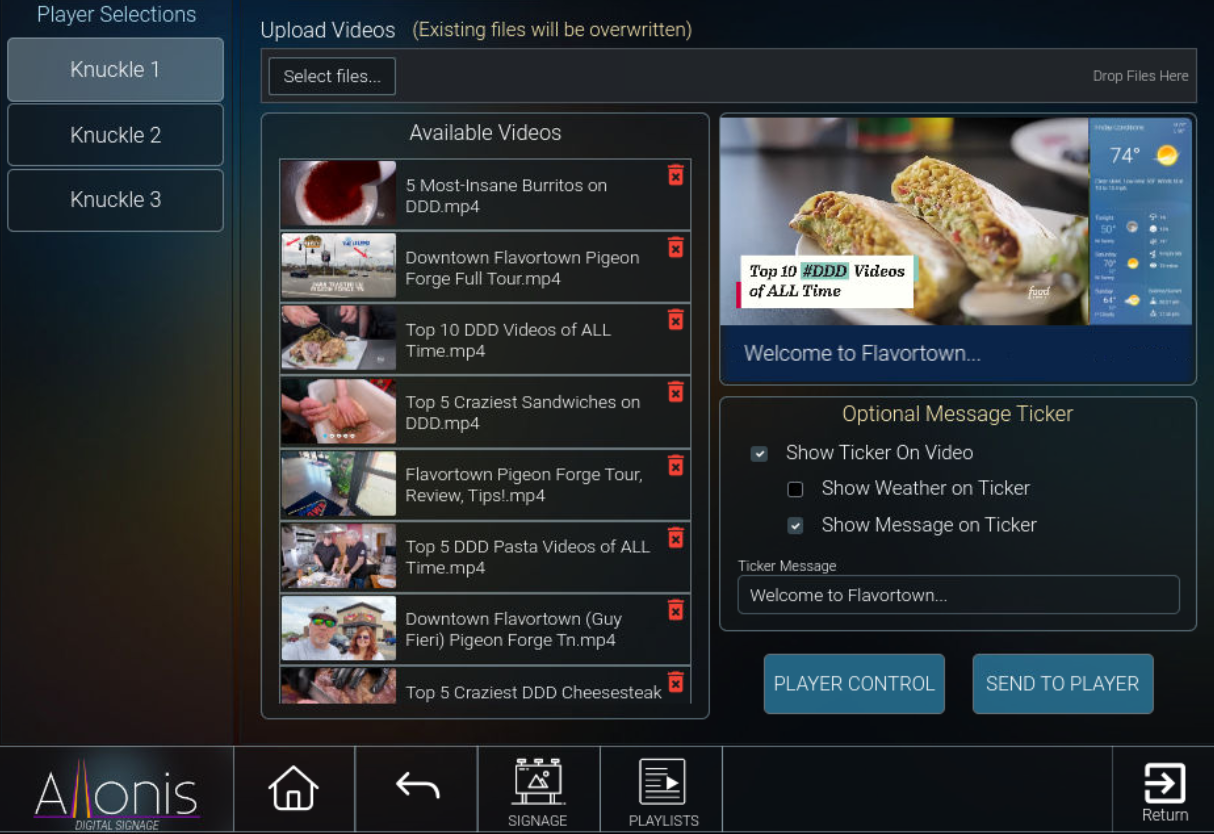
Figure 2
Select the video to be played and preview. Add the ticker message if you want and then “Send to Player” to view on the signage player. Videos will play in a continuous loop.
Video Loop with Optional Ticker:
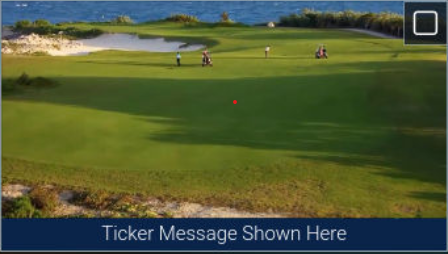
This template will allow you to display a video of your choice along with an optional ticker tape message. The video will be displayed full screen on the selected signage player.
See Figure 3.
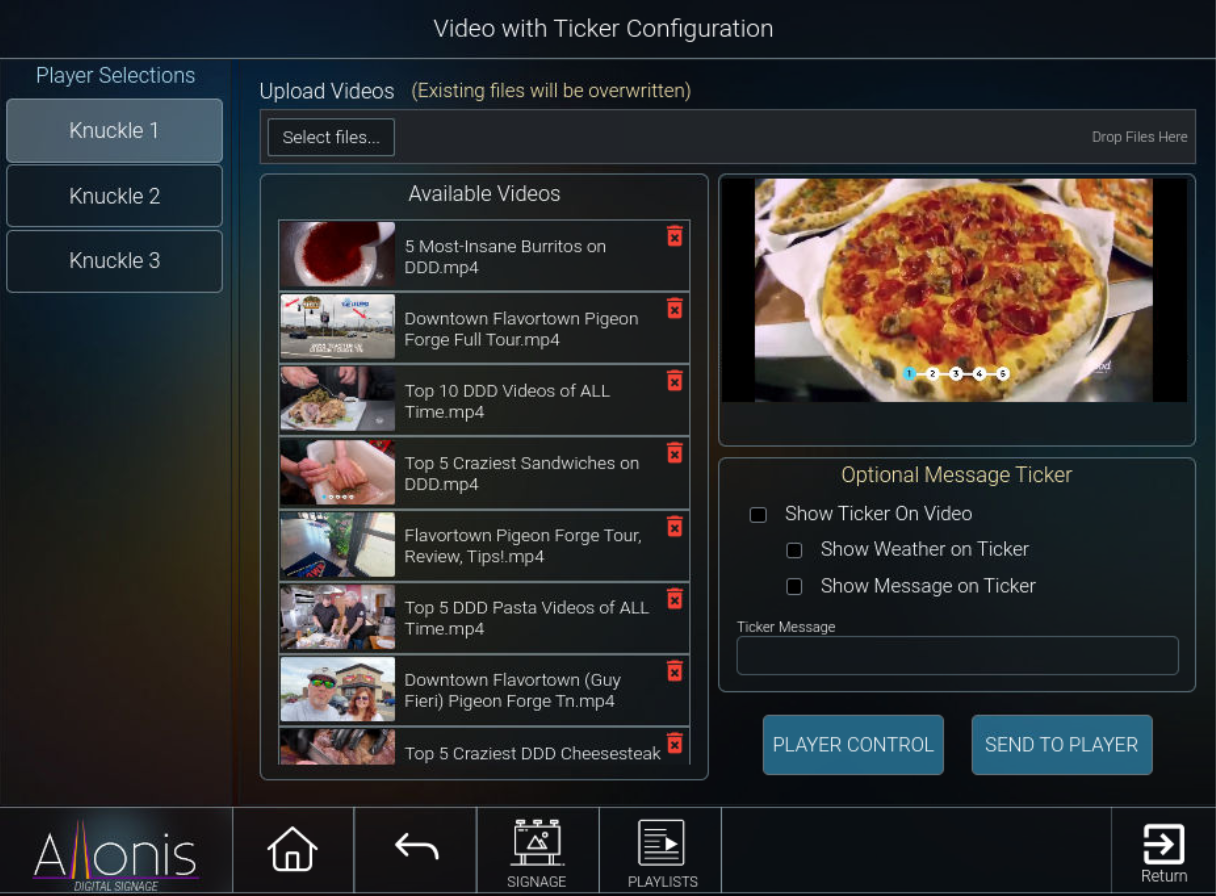
Figure 3
Select the video to be played and preview. Add the ticker message if you want and then “Send to
Player” to view on the signage player. Videos will play in a continuous loop.
Video Playlist with Optional Ticker:
This template allows you to select a predefined playlist of videos to play in a continuous loop. With optional ticker tape. Playlists are defined in the playlist manger describe a little later on.
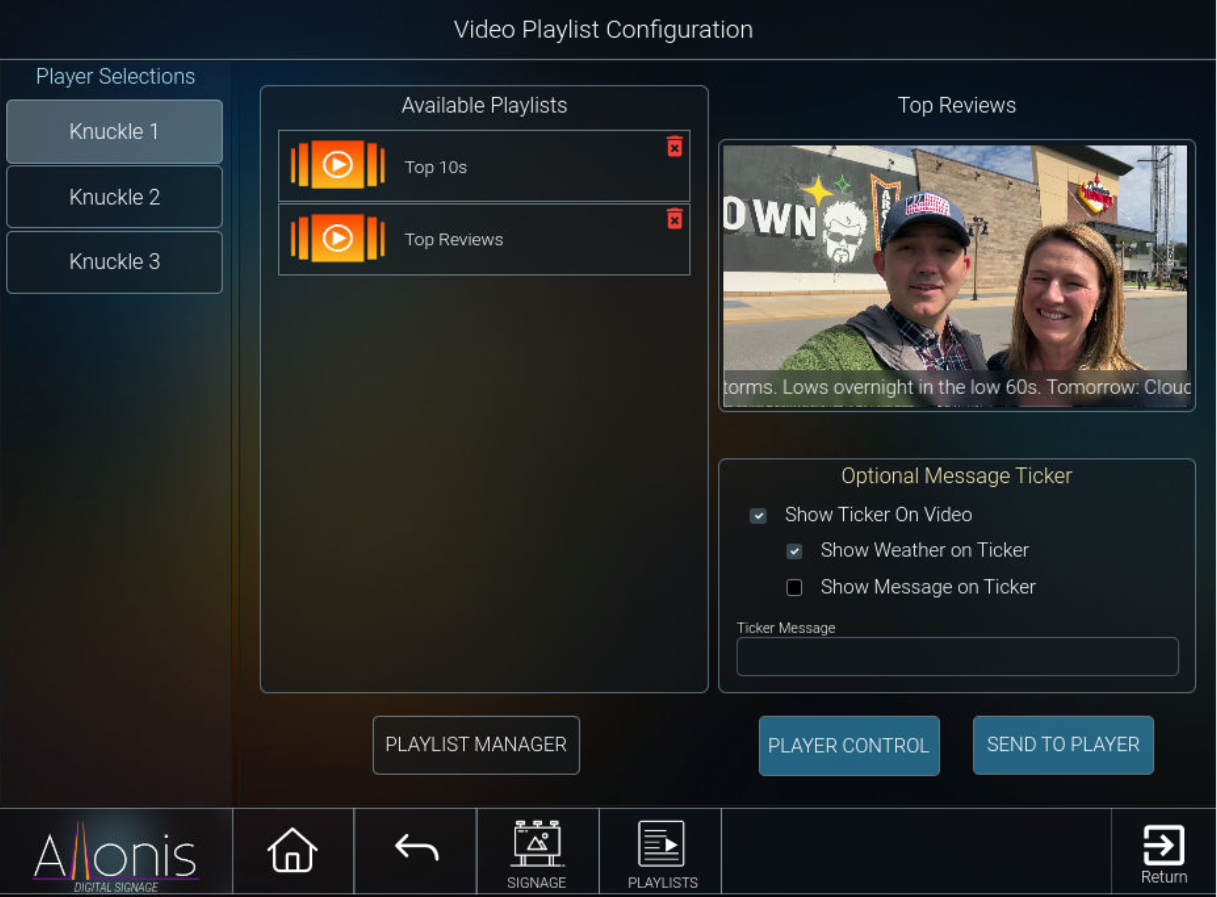
All the videos in selected playlist will play sequentially and then in a continuous loop.
Static Image with Ticker and Weather
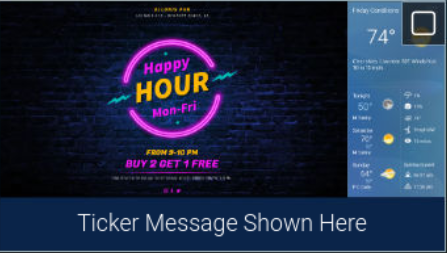
With this template you select a static image to display instead of a video. Weather is displayed on the right column. You also have the same ticker tape options available.
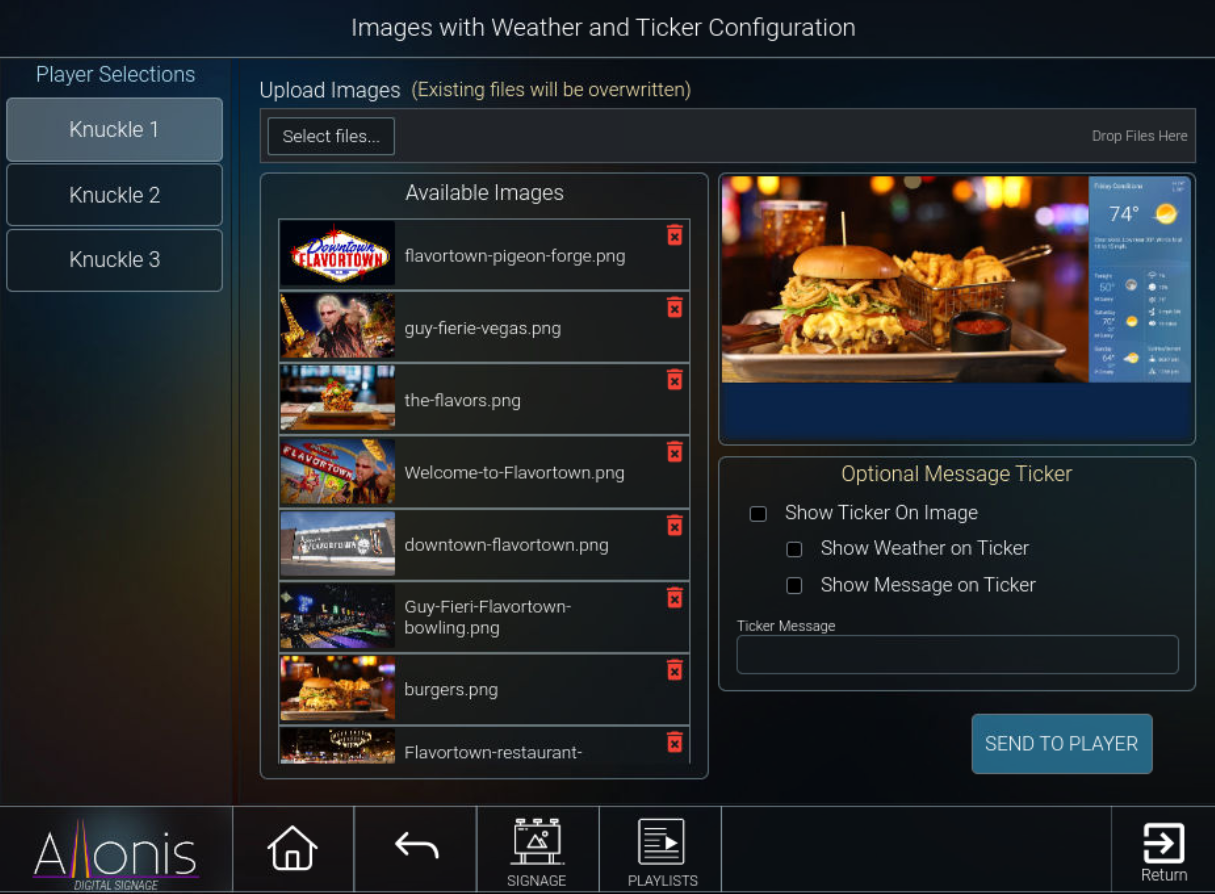
Figure 4
The selected image remains static until you change it.
Static Image with Optional Ticker
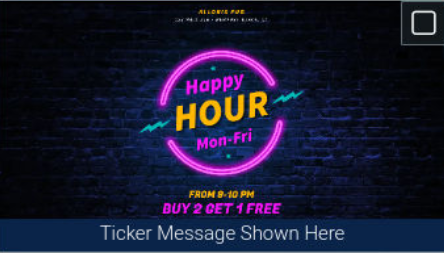
This time the image is displayed full screen with the optional ticker tape message.
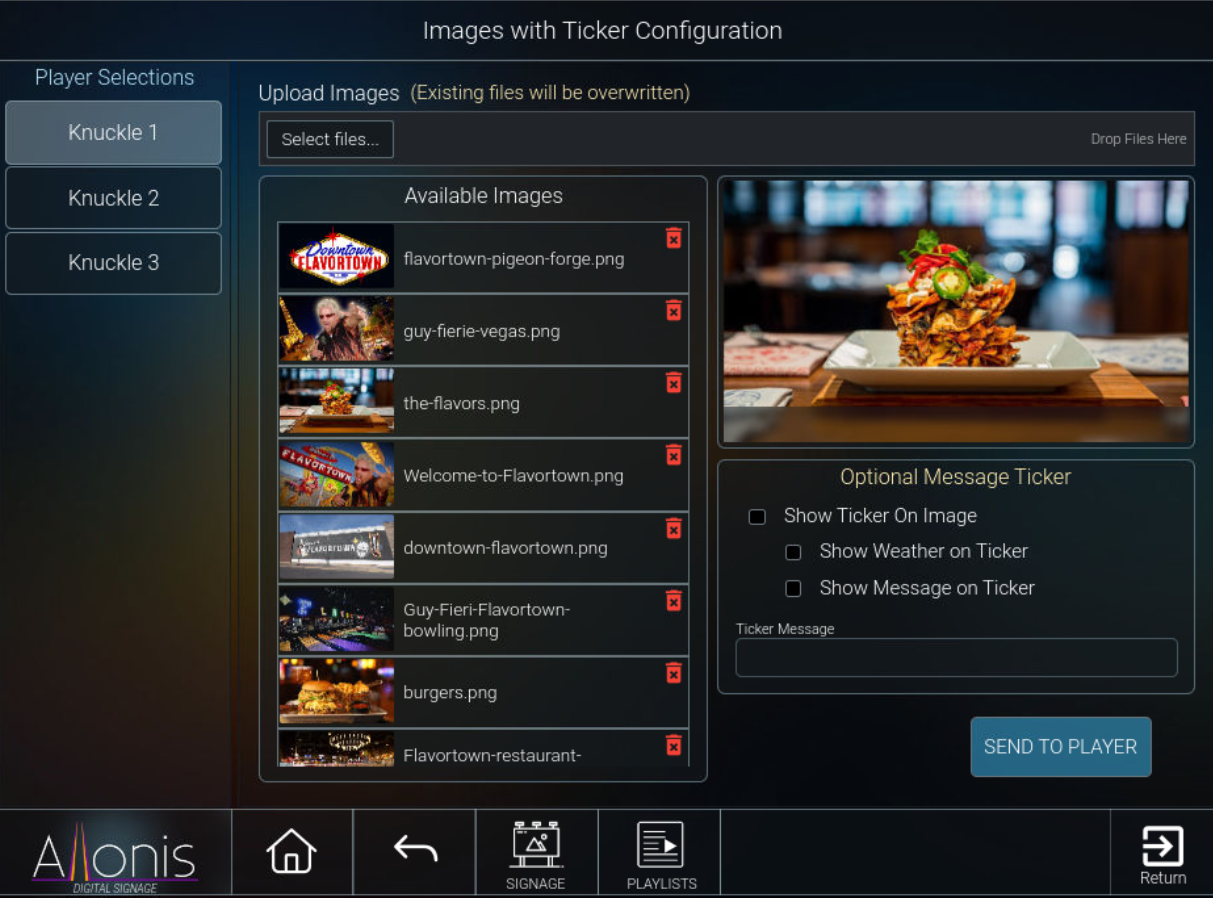
Figure 5
The image is statically shown until you select a new image or template to display.
Image Slideshow with Optional Ticker:
This template will display a continuous loop of images from a predefine image playlist. You have animation and ticker options to customize how these images are display.
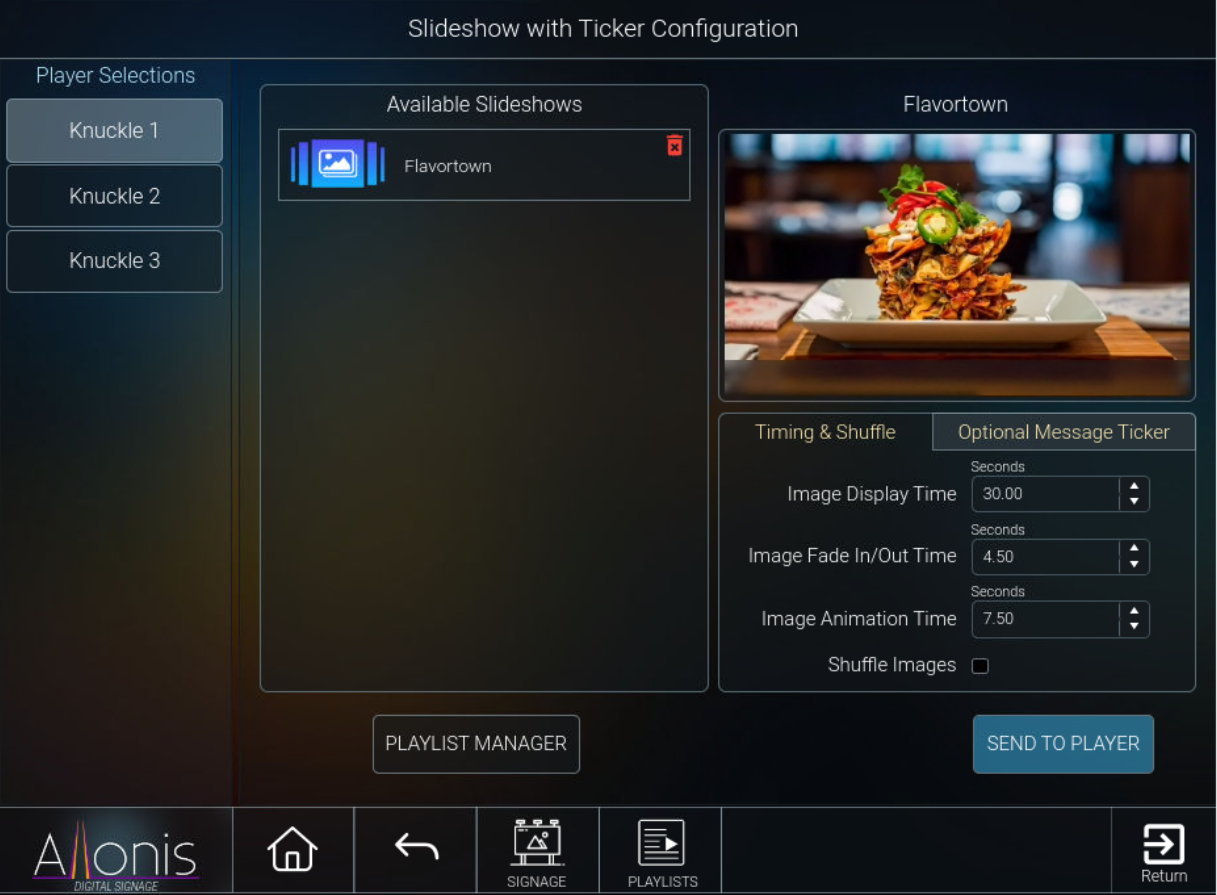
Figure 6
Managing Image and Video Playlists:
To access the Playlist manager for either Videos or Images either click on the Playlist Manager button on either playlist template page or click on the Playlists button on the bottom navigator.
Video and Image playlists are handled on separate pages. However, both playlist editors function identically the only difference being the types of media they deal with.
Image Playlist Management:
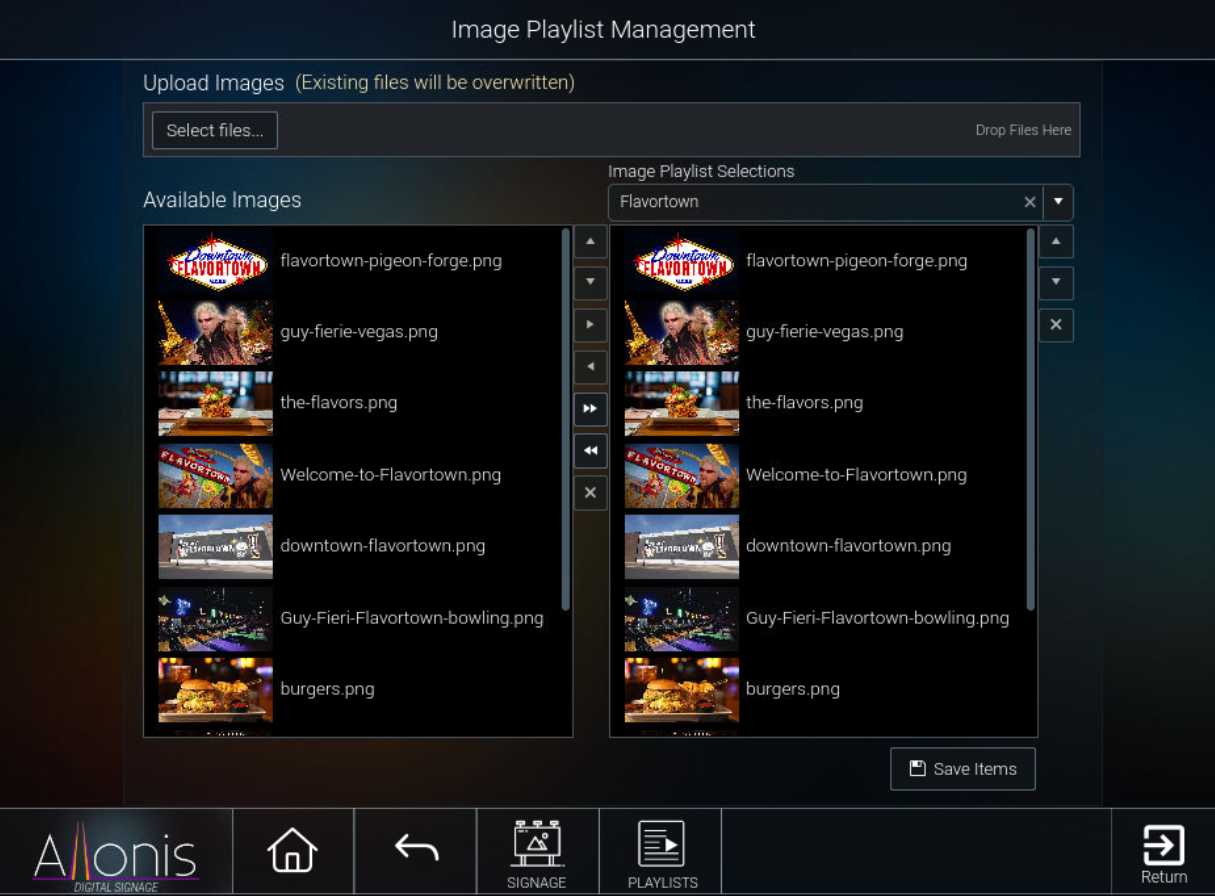
Figure 7
To create a new playlist start typing into the dropdown selector above the left-hand column. You will be prompted that the playlist does not exist do you want to create it. Select yes and then immediately click back on the dropdown to select the new playlist name you just created.
After that select the image from the left-hand column and the click on the center set of buttons to move the image from the left to the right columns. Repeat for as many images you want to have in the playlist.
To upload new images to the system, concentrate on the top “Upload Images” section. Click the “Select Images” button to browse locally for the images or simply drag and drop the images to the “Drop Files Here” text.
Queue up all your images and then click on the upload button. Upload status will be displayed and then the queue will clear once all the images have been uploaded.
Once you have finished uploading and adding images to your playlist remember to press the “Save Items” button to commit all your changes.
Video Playlists:
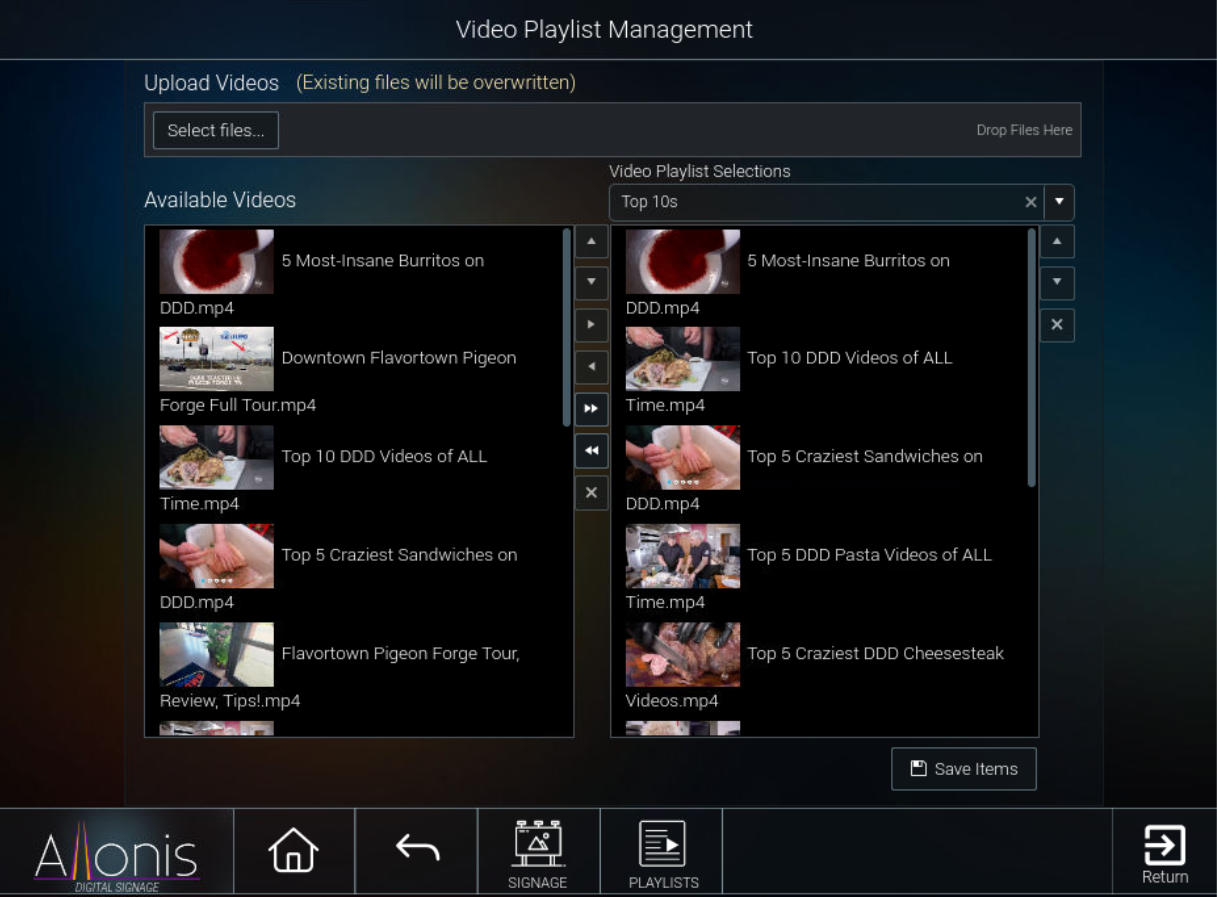
Figure 8
Just like image playlists create a new playlist by typing into the dropdown selector above the left-hand column. You will be prompted that the playlist does not exist do you want to create it. Select yes and then immediately click back on the dropdown to select the new playlist name you just created.
After that select the videos from the left-hand column and the click on the center set of buttons to move the video from the left to the right columns. Repeat for as many videos you want to have in the playlist.
To upload new videos to the system, concentrate on the top “Upload Videos” section. Click the “Select Files” button to browse locally for the videos or simply drag and drop the videos to the “Drop Files Here” text.
Queue up all your videos and then click on the upload button. Upload status will be displayed and then the queue will clear once all the videos have been uploaded. Video formats are restricted to .mp4 or .mkv files to make sure they are compatible with all devices.
Once you have finished uploading and adding images to your playlist remember to press the “Save Items” button to commit all your changes.
Media Management:
There is a limited amount of space one the controller for storing images and videos. You have approximately 200gb of free usable space on the system for media. Please remember to purge old media off the system when they are no longer being used. You should always maintain all your signage media on a separate archive moving only “current” media to the control as needed.
You can purge old media off the system by clicking on little red trashcan icon  that displays in the upper right corner on any of the video or image selection pages.
When you are all done with Digital Signage make sure to click on the bottom navigator Return button so that you can resume operations on the main application.
myDigitalSignage leverages the high video quality of a FireTV stick (or cube). myServer can also control the FireTV stick. Here are the "levels of capability" that we can implement:
Installation tidbits:
On SportsBar templates, to ensure you don't get a "No source selected" when selecting Digital signage as the source and then clicking the Remote button:
change the activate.remote macro adding the new case for signage like below
Switch|{{targetscene_{{clientname}}}}##
directv##WebCmd|{{clientname}}~LoadScene|directv##
cabletv##WebCmd|{{clientname}}~LoadScene|cabletv##
appletv##WebCmd|{{clientname}}~LoadScene|appletv##
firetv##WebCmd|{{clientname}}~LoadScene|firetv##
roku##WebCmd|{{clientname}}~LoadScene|roku##
heos##WebCmd|{{clientname}}~LoadScene|heos##
sonos##WebCmd|{{clientname}}~LoadScene|sonos##
signage##WebCmd|{{clientname}}~LoadProject|signageadmin##
default##WebCmd|{{clientname}}~Toast|Error~Invalid Source Selected~The Selected video device does not have remote control capabilities~7500