



myDesigner 6 is Allonis's application that helps the integrator or the DIY user design their own user interface web pages, without needing to be a web developer. myDesigner 6 connects to the myServer 6 wwwroot folder (where your templates are stored) and to the myServer back end database.
System Requirements
- Microsoft Windows 10, 11 with all the current service packs and security updates. (32 or 64 bit versions. 64 bit recommended). NET 4.8 must also be installed.
- modern dual-core processor
- 2GB main memory. (4GB or more recommended)
- 100GB free disk space
- myServer 6 running on same or a second PC that is on the same network as the myDesigner Windows PC
- It is possible to run on a MacIntosh running Parallels (see details below)
The ideal PC for using myDesigner 6 software is a Core i5 processor with 8GB of memory with a SATA III hard drive running Windows 11 Home or Pro 64 bit. SSD drives are recommended.
Installation
- Step 1: Install myServer 6 and ensure it is started.
- Step 2: Temporarily disable any anti-virus software. Once these products are installed it will be safe to re-enable your virus software. The installer modifies firewall permissions to allow the components to network properly.
- Step 3: Download myDesigner 6 on the PC you want to run myDesigner 6 on.
- Step 4: Check the installed desktop icon. If it has a "shield" graphic on it, you are good to go, if not, Windows 10 and 8 Users must now take one additional step. Right-click on the "I" icon that was created on the desktop to change the properties of the icon. Go to the compatibility section and make sure you check off the box that says "Run this program as an Administrator"
- Step 5: The myServer 6 network setup defines which ports on the SQL server allows a remote PC running myDesigner to connect to it.
- Step 6: Once myDesigner 6 starts up, configure the settings form for the IP of myServer controller.
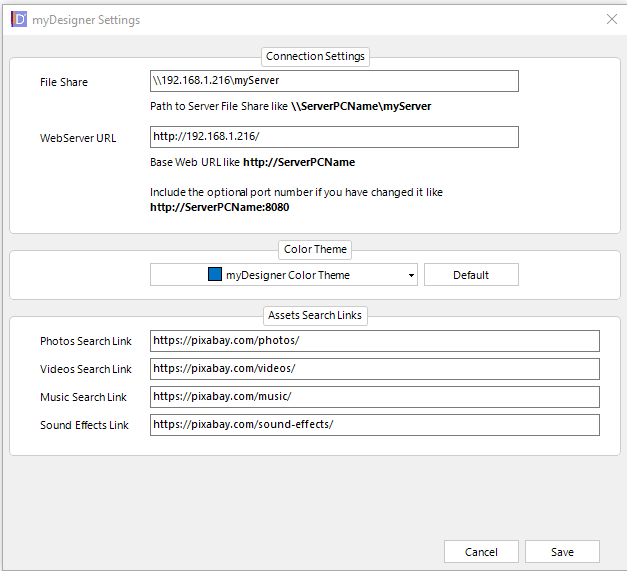
- File Share: "\\yourSERVERname\myServer" If your list of myServer template folders doesn't populate, then it's likely that your Windows computer doesn't allow for connection. Paste the same URL into Windows File Explorer. You might need to add "allonis / allonis" user credentials to Windows to enable connection. If you are having issues, particularily with Windows 11, right-click on Windows 11 start button. Choose run. In the Open text box enter \\[IP ADDRESS]\myServer and click ok. Are you prompted for credentials? If yes then enter allonis / allonis and make sure to click on remember. If no then does that open the share and you can browse files?
- WebServer URL: "http://yourSERVERname:80/" Modify the port number to be same as what you are running myServer's web server on. Port 80 is the default and it is not required to be typed in the URL. Click Save button.
- Step 7: Click the SAVE button and Connect. myDesigner 6 should now be running and your list of web apps should be listed on the left side.
- Step 8: Follow the myDesigner instructions on how to design user interfaces for myServer. Click HERE. Recommended is to explore the included sample web apps, copy them, and modify until you become proficient to build your own from scratch.
Windows File Shares
It is required that Windows File sharing is enabled on the myDesigner Windows PC.
If you have disregarded Windows notification that the folder is not accesible, then you may have to map a new driver:
Some possible steps:
From Windows File Explorer
Right-click on Network and click on map network drive
From Map Network Drive
Pick a driver letter like Z:
Set Folder = \\<<myServer IP Address>>\myServer
Check - Reconnect at sign-in
Check - Connect using different credentials
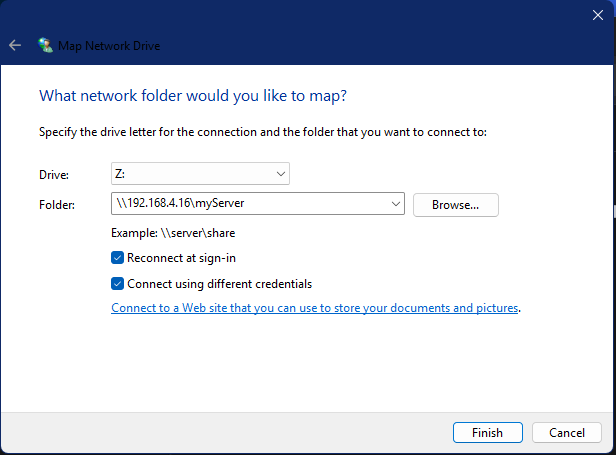
Click Finish
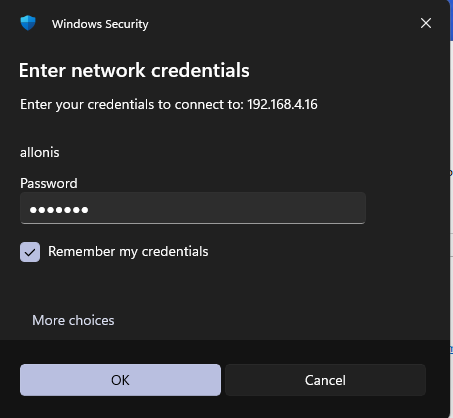
On Windows Security Dialog
Click on more choices
elect Use a different account
Then enter
username = allonis
password = allonis
Check - Remember my credentials
Click ok
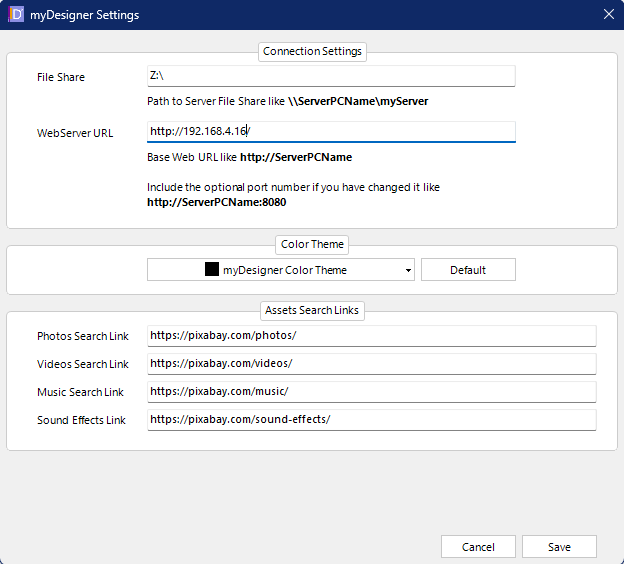
then go to myDesigner
Set File Share - Z:\
Set WebServer Url - http://<<myServer> IP Address>>
click save
Macintosh
One user advises that he has succesfully installed myDesigner on a M1 Max chipset MacBook Pro with Parallels having an instance of Windows 11 Professional installed.
The only issue once myDesigner 6 was setup, was that an error of “… unable to create (wwwroot) folder…” was seen.
This was resolved this by running gpedit.msc to enable folder creation permissions. This type of installation is not supported by Allonis but apparantly possible.
Tips:
If you cannot see the myServer files:
Right-click on the Windows Start Icon. Select run.
In the Open dropdown type \\A.B.C.D\myServer and click ok.
Where A.B.C.D equals the IP Address of your myServer device. e.g. \\192.168.0.23\myServer
Does it prompt you for credentials? If yes the username / password combination is allonis / allonis
Make sure to check off the "remember" checkbox.
Close and reopen the designer.
If you cannot see all of the myDesigner Action tool bar, ensure your PC's display scaling is set to 100%.
Issue a Quick Command from myServer like: webcmd|w1921681109~ShowDimensions this will display on the target device it's screen resolution that can help in the design of the webpages. Yeah, that 1921681109 is the devices network IP address...