



The MediaMTX Streaming Media Driver does....
MediaMTX Driver injests diverse audio and / or video streams (like: RTMP, RTSP (ideal type), SRP, HLS, Raw UDP data packets, USB capture devices) and transcodes the stream technologies into various output types like: HLS, RTMP, RTSP, WebRTC, SRT and low latency HLS streams that can be viewed on a browser (like through myServer's user interfaces). The WebRTC is best performance in a myServer browser (low latency).
Typical real life performance: 720P at 20 frames / second. With very low latency (about 1 video frame).
The software runs very efficiently and doesn't consume much myServer CPU. Your results will vary depending on the input and output types chosen.
Tested on OrangePi5Plus (excellent performance as it has hardware video decoding), Pi4 (good) and Pi5 (very good) and Nvidia CPUs (hardware encoding, best performance - capture commands are unique).
Allonis does not support running MediaMTX on Windows systems today, only Linux and Raspberry OS (Debian). 64 bit ARM processors. If you can figure out how to install the MediaMTX software on windows manually - then you can point to that instance from myServer's MediaMTX driver.
If the MediaMTX server and the client trying to view the stream, Stun / Turn server is contained within the software (can work offline of the Internet). If the client is on a different network (a different subnet that is on a different router), then the Internet Stun / Turn server is used (via Google's public Stun / Turn server).
PTZ Onvif control are supported within the MediaMTX driver.
Define Host - which is the backend host that does the media MTX service that transcodes audio and video file types. Typically this would be the local myServer's IP
MediaMatrix|AddHost~Host~192.168.1.216~9997
After that AddHost command is processed, the driver will enable the host on that myServer controller. In command builder, you will see that "Install MediaMTX" is now enabled (after 30 or so seconds). Click on that to install and then the MediaMTX enginer status should now be showing as "Running".
The MediaMTX software is regularily updated, it gets updated via myServer updates. If yours is running an older service, click the Upgrade MediaMTX button to update it to the later version distributed via myServer updates.
Click the "Onvif Discovery" button on bottom left to attempt to find compatible cameras on your network.
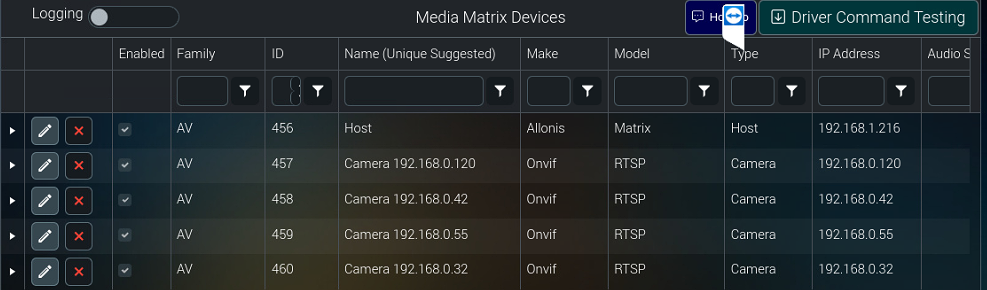
Click on the camera in the list you would like to process for.
You likely will need to add the user name / password for that camera (towards the bottom of the device edit panel).
Depending on the camera, with this authentication information, the driver might be able to query the camera and determine it's "Source Path" and populate that field. You many need to reopen the camera's Edit panel to see this new information.
On many cameras, theprimary stream is H265 encoded and we cannot process H265 yet. So switch to the secondary stream which might be H264 encoded. On some of those cameras, that's the difference between configuring with a "401" in the url and the Streaming/channels/402 in the url (the second stream).
Click Device Previewing button. Hopefully you will see the camera image in that testing user interface. You might also be able to control the Onvif Pan / Tilt / Zoom commands if the camera supports Onvif PTZ capability. Not all cameras support all functions on the user interface.
You can right click in the browser and go to "Inspect" (Chrome browser's only). This might give you a hint of what might be of issue if the picture does not display. Every camera has it's own nuances so this part of the process is a bit hit / miss. You can look at the camera's documentation (if any) or you can research by doing a "google search" for the make / model of the camera and RTSP, or research at https://www.ispyconnect.com/sources.aspx or http://security.world/rtsp for your make / model of camera.
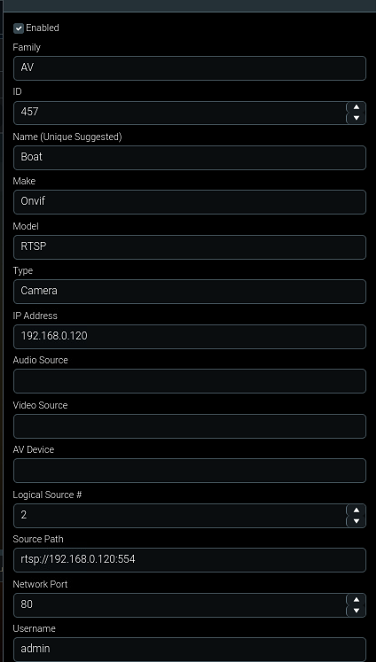
Advanced Topics (other uses of the MediaMTX driver):
The Audio Source field would be the hardware devices operating system ID (like "/dev/capture_1") if using Allonis's HDMI capture hardware.
The Video Source field would be the hardware devices operating system ID (like "/dev/capture_2") if using Allonis's HDMI capture hardware.
AV device field is what device is being Previewed (like a "DirecTV" box) where the device ID of the source device is configured.