



myServer 6 supports multiple ways to control Infrared devices with extensive libraries of supported IR codes.
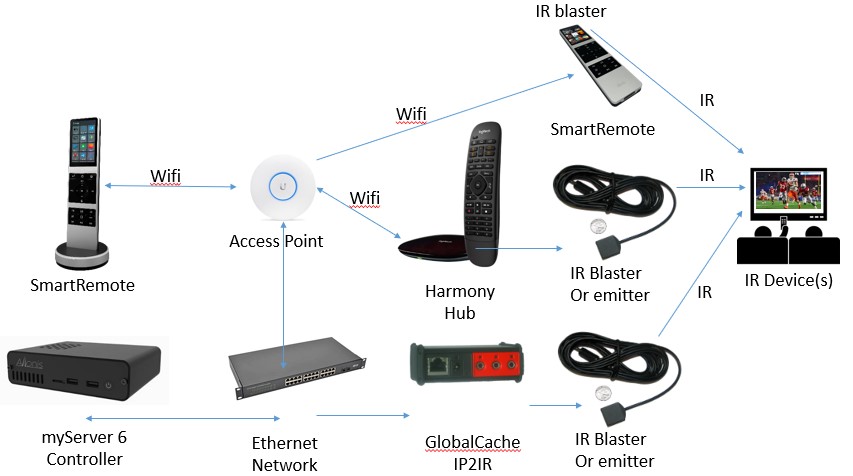
Allonis is partnered with GlobalCache. This is the preferred hardware for supporting Infrared. All GC products are supported in the GlobalCache driver available in the Software Updater. Additionally, one can Learn IR codes as the IP2IR hardware includes an IR learning "eye". Important is to mask the IR emitter so no light pollutes the device from external sources (like another IR emitter). Here is and example of a Mask.
Allonis also has an even more inexpensive "myIR1" hardware that connects to myServer via Wifi. This small device is powered via USB-C and is "glued" to the device's IR eyeball. Recommended for smaller systems with few IR hardware (like a single "blueray" player).
The SmartRemote adds new capability as the remote control has an IR blaster built into it's nose. The same IR codes can be routed to the SmartRemote for transmission to the device.
myServer also supports the Harmony Hub via IP. Harmony Hub supports 670,000 devices in it's extensive database. Most of these are controlled via Infrared. The Hub is supported with the "Harmony" driver available via the Software Updater in myServer.
Allonis's SmartRemote handheld remote control has an Infrared emitter located in it's nose. it is very easy to add support for IR devices controlled by the SmartRemote.
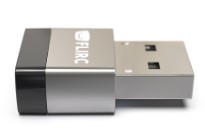
myServer will also soon support the FLIRC IR receiver USB hardware. This is for capturing "any" IR from a standard handheld remote control that can then be mapped to myServer functions. For example, the remotes "play" button can be mapped to a "SmartRemote Play" button....so any programming available for the SmartRemote can be leveraged by a lesser handheld remote control's hard buttons.
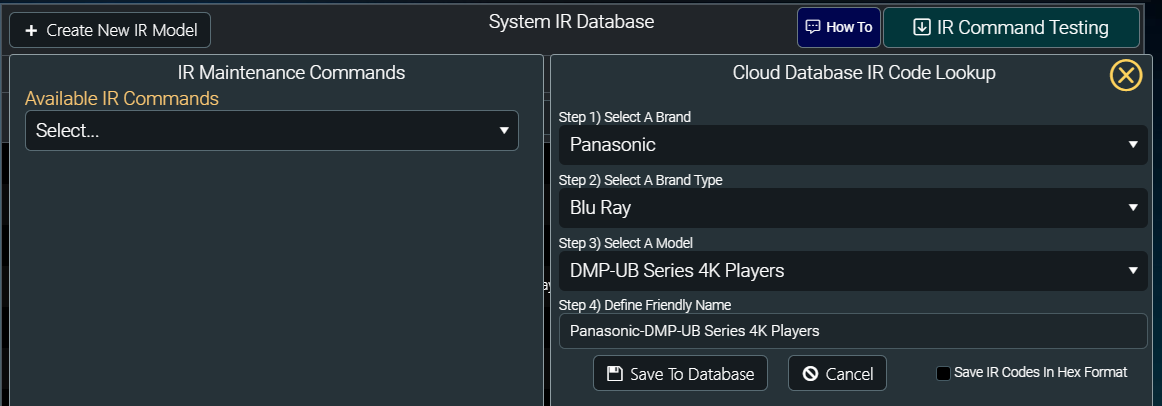
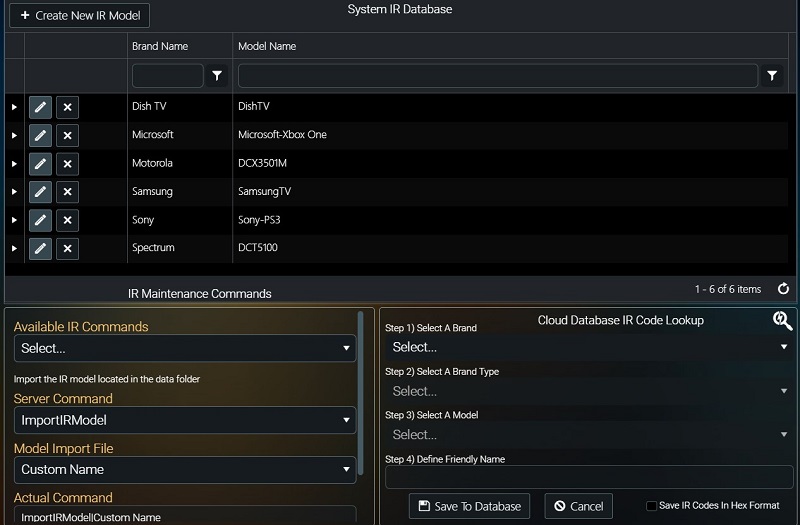
In myServer's Dashboard, there is the Management / IRDatabase. This is where you create your IR controlled devices like a "Samsung TV". You can look up in the cloud database your model Samsung TV and save those IR codes to the myServer IR database (in your local system). click on "IR Command Testing"
- Type the brand first letter and scroll down the list in the Step 1) Select a Brand
- Then, choose what type of device in Step 2
- Select your model in Step3
- Choose a name for your device that you can relate to.
- Click Save to Database. This saves the IR info from the cloud to the myServer local database. It will appear like the picture below:
Go to the Dashboard \ Management \ IR Database
You should see your new device in the list.
If you click the devices dropdown, you will see the IR codec
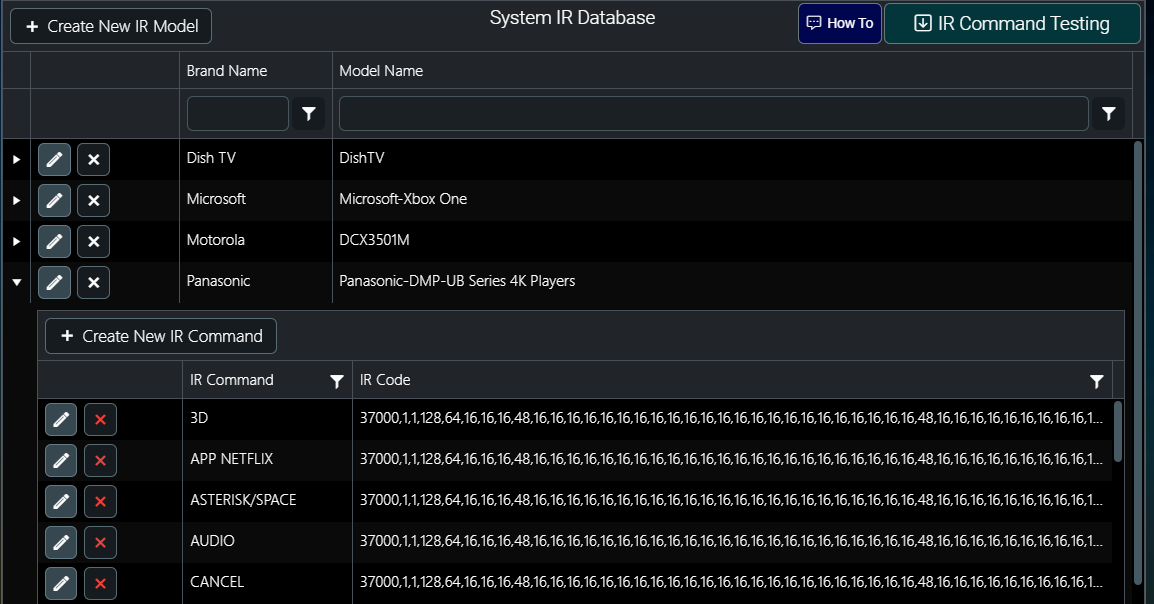
Note you can edit each IR codec if you find some don't work and you find a better codec online or via Learning an IR message.
Once you have looked up and saved all of your IR Devices, you then can use the GenericIR Devices driver to associate which IR hardware is used for that IR Device. For example, if you have a GlobalCache IP2IR connected to the Samsung TV, this is where you define that relationship and the IP2IR's IP address and which emitter port the Samsung TV is connected to. From here, you can send test commands to confirm you have an end to end working IR control system using the Command Builder.
As you are testing IR commands, the Command Builder shows you the syntax of what a good IR command looks like that you can copy / paste into macros and user interface buttons (touchscreen buttons, or SmartRemote hard buttons) in myDesigner.
You can see the "Discovery" button on the left (pic below). This will automatically look at the IP network and find your GlobalCache IP2IR device and automatically add it if found and not already configured. Easy Peasy.
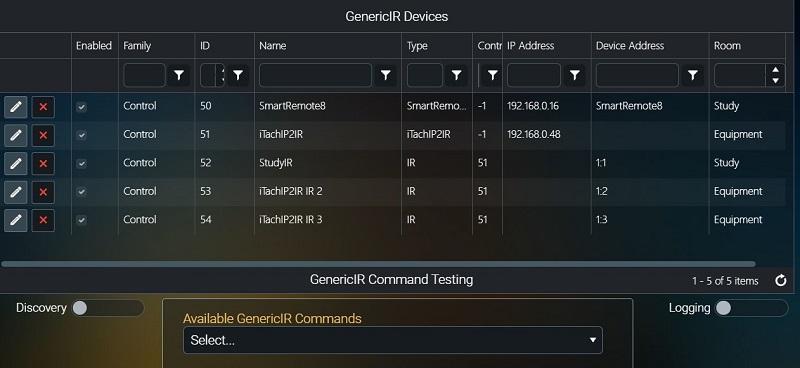
If you want to use the SmartRemote's built in IR emitter, simply add a GenericIR Device with the SmartRemote's IP address and it's typical room it's assigned to. Add it manually as per above picture example. The Device Address must be the SmartRemote Clientname you setup in the SmartRemote's Settings. Pretty simple!
You are now ready to create your user interfaces and macros to control your IR Device!