



Denon's HEOS wireless / wired streamers are the preferred music streaming players for use with myServer 6 systems.
They support most of the most popular audio streaming content providers with an excellent integration with myServer 6 user interfaces.
All HEOS devices should work. Tested are HEOS built into Denon AVRs, Heos Link HS2, and HEOS wireless speakers. For larger commercial projects, we recommend the HEOS Superlink that supports 4 independent radio stream players in a rack mount.
Installation
Unpack the HEOS streamer. Follow the included instructions for getting the device on the network (Ethernet is preferred, WiFi is well supported). Use the HEOS smartphone app from Apple or Google app stores for your smartphone.
Once your phone and the HEOS player is on same network, open the HEOS app and the app should find the player. If software / firmware updates are needed, they will automatically install. Your HEOS app should be configured with your streaming music services. Test the player using the HEOS app to ensure all is working. Once all is installed, you are ready to integrate the Player with myServer 6.
In order to get the music services to show up on the UI you need to use the Heos phone app. Connect to the Heos player then go into Settings / Music Sources. Then for every music source, subscribe to sign into them using the appropriate credentials. Once you have all the music sources enabled to a hard power off and on of the Heos player.
Download and Install the HEOS application from myServer 6 Software Updater.
Restart myServer
Click on Configure on the HEOS application.
Run the Discover command.
Your HEOS player(s) should then show up.
For each player, edit and add your username / password, select the Room it should be associated to and Save.
The HEOS devices should be of family "AV".
The HEOS devices should also be of type "Heos".
Edit the "activate-room.roomaname" macro
For the HEOS icon to show up on the media pages, edit: SetVariable|{{activeroom_{{clientname}}}}_heos_isavailable~1!
Edit the same macro: SetVariable|{{activeroom_{{clientname}}}}_heos_id~3!
and Save the macro.
Using HEOS
Use the Sheer Tablets (or Phone) sample template.
Select (activate) the Room the HEOS player is associated to. You should then see the HEOS user interface.
Click on "Selections" to choose your streaming source and navigate to the channel you would like to listen to.
It might take a few minutes for these lists to be populated first time.
You should see the coverart of the current song and the song should then be playing via the HEOS player.
Grouping: Group support will be added in the near future. The Volume control of each player works today.
Grouping is available in the Tablet sample user interface to be used as example.
In the activate-source.heos macro, enable:
AV|{{active_heos_{{clientname}}}}~SelectDevice!
Info:
When one issues the selectdevice command it will check to see if the browser has been initialized and if it hasn't it executes the HEOS home command to bring it into sync. selectdevice is called in the activate-source.heos macro
Example: Asssign a HEOS Favorite to a button
This example involves some fishing. Creat a Heos Favorite and it should show up like this:
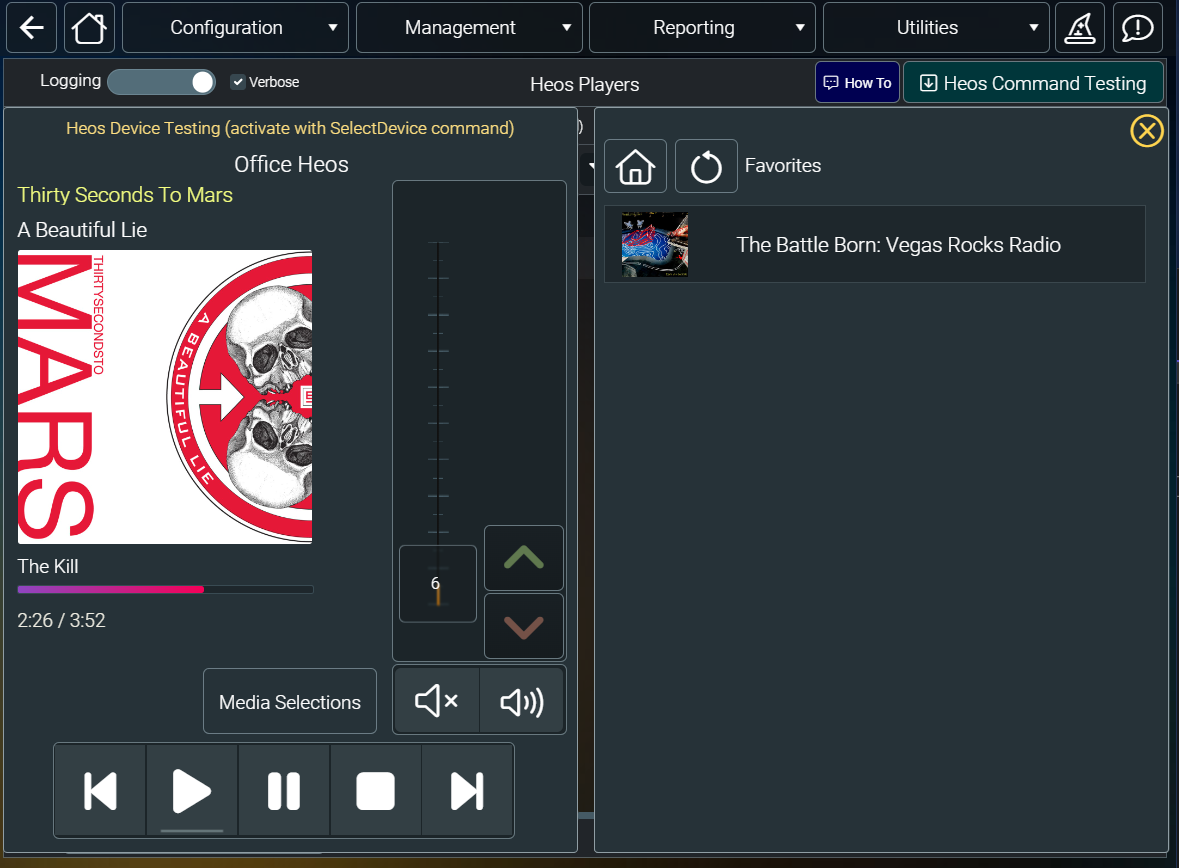
If you then turn on verbose logging on the driver and click on the favorite to play it the log shows this

From the log grab the heos:// url
heos://browse/play_stream?pid=2117691565&sid=1028&mid=4586579727037038354&name=The Battle Born: Vegas Rocks Radio
Then using the drivers Test command add this command to a button:
AV|{{active_heos_{{clientname}}}}~Test~heos://browse/play_stream?pid=2117691565&sid=1028&mid=4586579727037038354&name=The Battle Born: Vegas Rocks Radio
Clicking the button will now start playback of that favorite.
It might be easier to put that command into a macro and then call the macro from the button push.