



Allonis's new DSP4428 is a Digital Signal Processor that is often configured as an audio matrix. It support 4 Analog Inputs and 4 Analog Outputs. It also supports 28 channels of digital audio using the AES67 audio specification. This allows the DSPs to digitally share it's Inputs to a second (or third....) DSP4428 so the system is near infinately scalable.
Once you need to Group more than 8 analogue inputs or outputs, you need a DSP4428 to increase the number of digital audio channels that can share the analogue signals to additional output routes.
- DSP4428 is a network audio processor or stagebox, it can communicate with other network devices based on AES67 protocol.
- The DSP4428 features built-in network audio routing and mixing capabilities.
- It has 32 input and 32 output channels, including 4 analog channels and 28 network channels.
- Utilizes the AES67 protocol and provides powerful DSP functions with support for OTA upgrades and splicing.
- In the second quarter of 2024, a firmware update will be available to support Gain Sharing mixing functionality.
The myServer 6 driver is very comprehensive in it's support. You can setup an audio matrix system, including michrophone ducking, and page steering.
A key feature is AES67 is also compatible with Dante digital audio when Dante is broadcasting in multicast mode. So, the list of supported compatible hardware is huge.
Model Feature Comparison table
| DSP Function | DSP444 | DSP4428 |
| PEQ | ✔ | ✔ |
| High/Low Shelf | ✔ | ✔ |
| High/Low Pass | ✔ | ✔ |
| Delay | ✔ | ✔ |
| AFC | ✔ | ✔ |
| 96KHz | ✔ | ✔ |
| Compress | ✔ | ✔ |
| FIR | ✔ | ✔ |
| Noise Gate | ✔ | ✔ |
| Peak Limit | ✔ | ✔ |
| AEC | ✔ | |
| AGC | ✔ | |
| ANS | ✔ |
Installation
In most Allonis's systems, recommended is to use the 1.5U modular case to house the DSP444 and SP4428 (one to three per rack case). A typical bar system would be myServer 6 automation controller on the left side, and a 4x4 DSP4428 on the right side of the case. You can also put the DSP4428 on a shelf.
Each DSP4428 must be connected to the "audio ethernet network". This network can be dedicated to just audio, or can be shared with the "Control Network" since audio doesn't really consume huge amounts of network bandwidth like digital video does. Use (for example) a "Ubiquity" quality network switch with AES67 prioritized data packets to minimize chance for "choppiness" in the audio feed.
By default, the DSP gets it's initial IP via the DHCP server on the network. They communicate (and can be discovered) via UDP on port 8999.
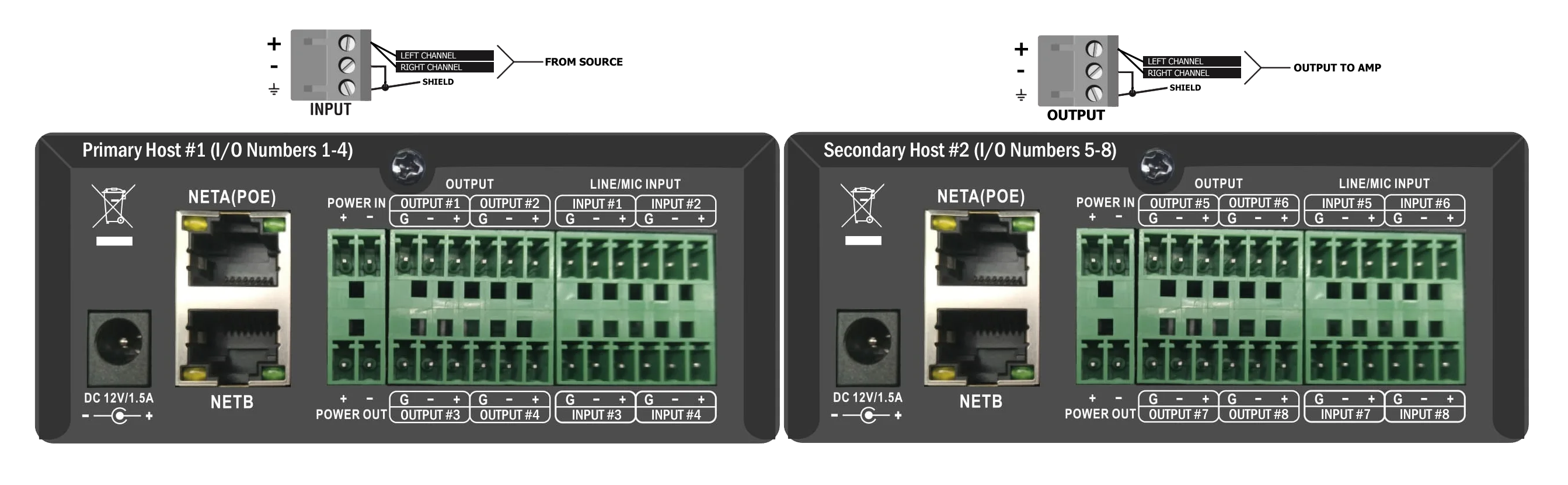
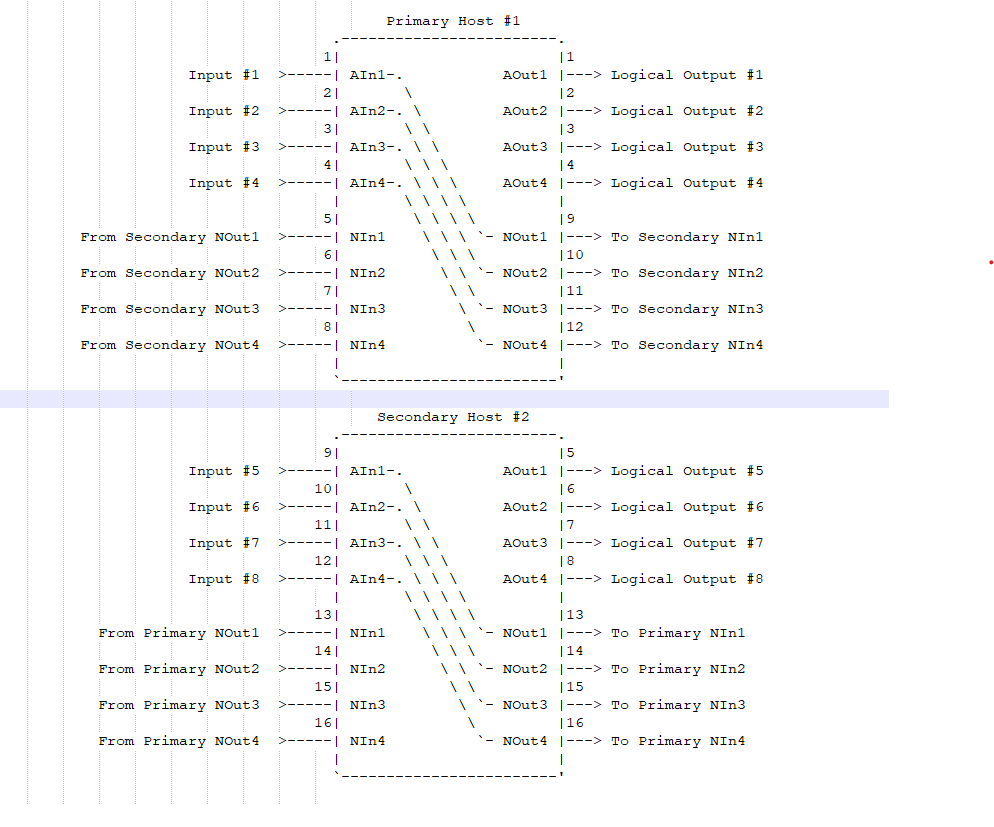
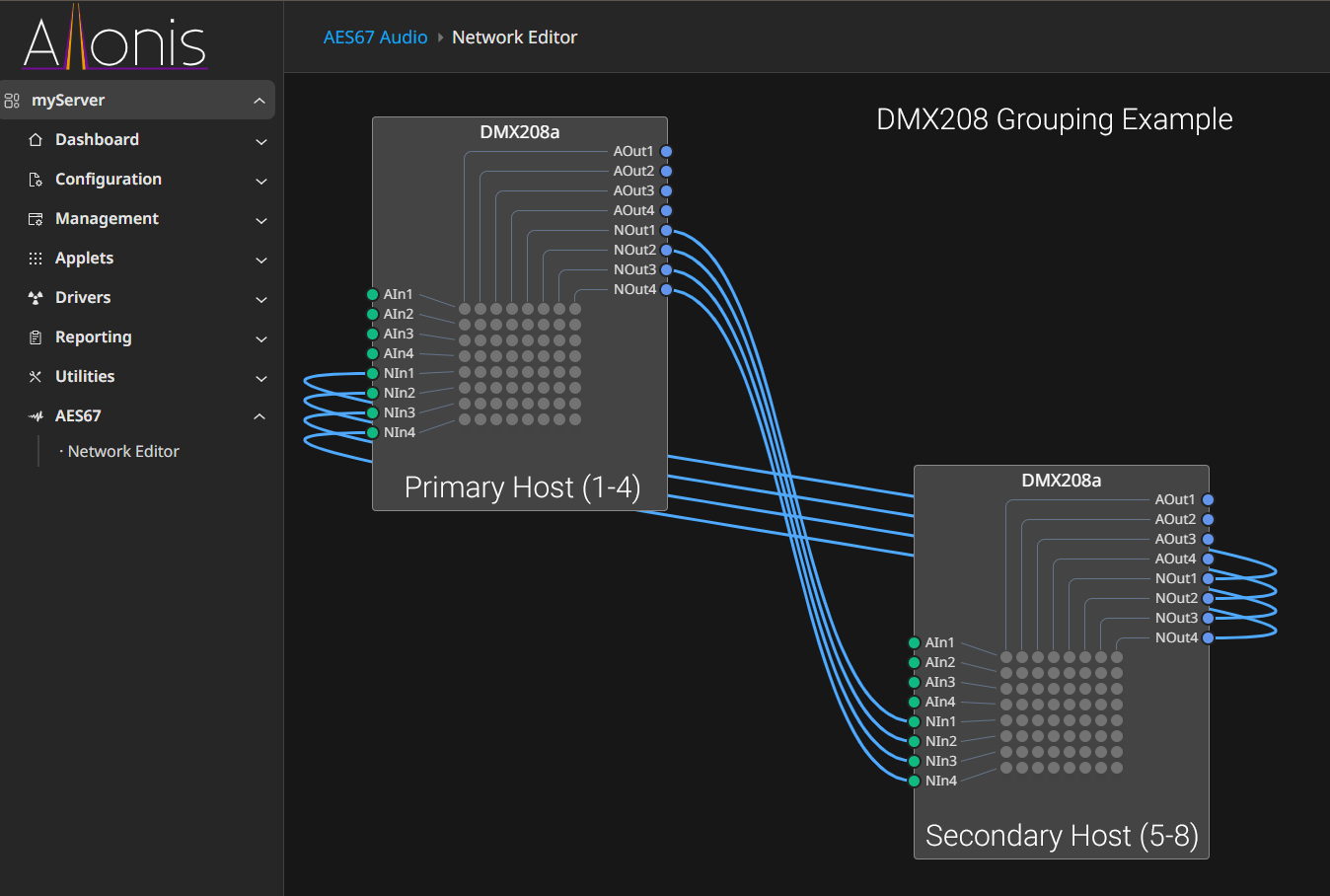
To give you a visualization of how the two DSP's need to work together. The first is a logical network view of how they are wired. The second is a view from the DMX router's perspective. In order to get the analog signals from each DSP to its partner the analog signals must be routed via the network ins and outs. We'll end up with a logical 8x8 analog switch but there is a lot of steering logic happening in the driver.
Configuration
When your DSP hardware is on the network, click Discover for myServer to find your DSP devices. In a few minutes, Discovery should find all DSP devices on the network. You can click Discovery again to shut off the process. Post Discovery, restart myServer and on restart, go back into the driver's configuration. Click on Matrix view (bottom of the Driver Command Testing page).
Physical I/O is the actual named ports on the DSP. Logical I/O describes what the system uses for inputs and outputs. So, in an 8x8 system (2 DSP 4x4s), there are two sets of Physical ports. There is one 1-8 set of Logical ports.
We will call the first DSP the "Primary" and the second (ports 5-8 as "Secondary") Host.
The Host can be thought of as the device that has a ethernet NIC (the RJ45 jack). The children of that Host come directly below that. Inputs are listed, first, followed by Outputs. Within Inputs, the analog Inputs show up first, followed by the network inputs.
Click on Network Routing View.
If audio routes have already been configured, you should see check marks on what Outputs are playing what Inputs (sources). You can change those routes by clicking in the appropriate empty box, to command the system to change which sources the Outputs are playing. Note that is you have more than one DSP444, that you can route "Source1 Analog" to "NetIn1" on the Secondary DSP (Secondary "host"). This then shares the Primary Source1 to the Secondary DSP444 host.
Matrix View
Volume tab
Best strategy is to change Input volumes to balance the sources to be same volume. The Analog Outputs shoudl be used to change the volume in a "Zone" ie: don't use the Analog Inputs for most cases.
DSP Inputs Tab
Suggested is to leave these at 0.0db (100%) for most system setups.
DSP Outputs Tab
Suggested is to leave these at 0.0db (100%) for most system setups.
DSP Matrix Tab
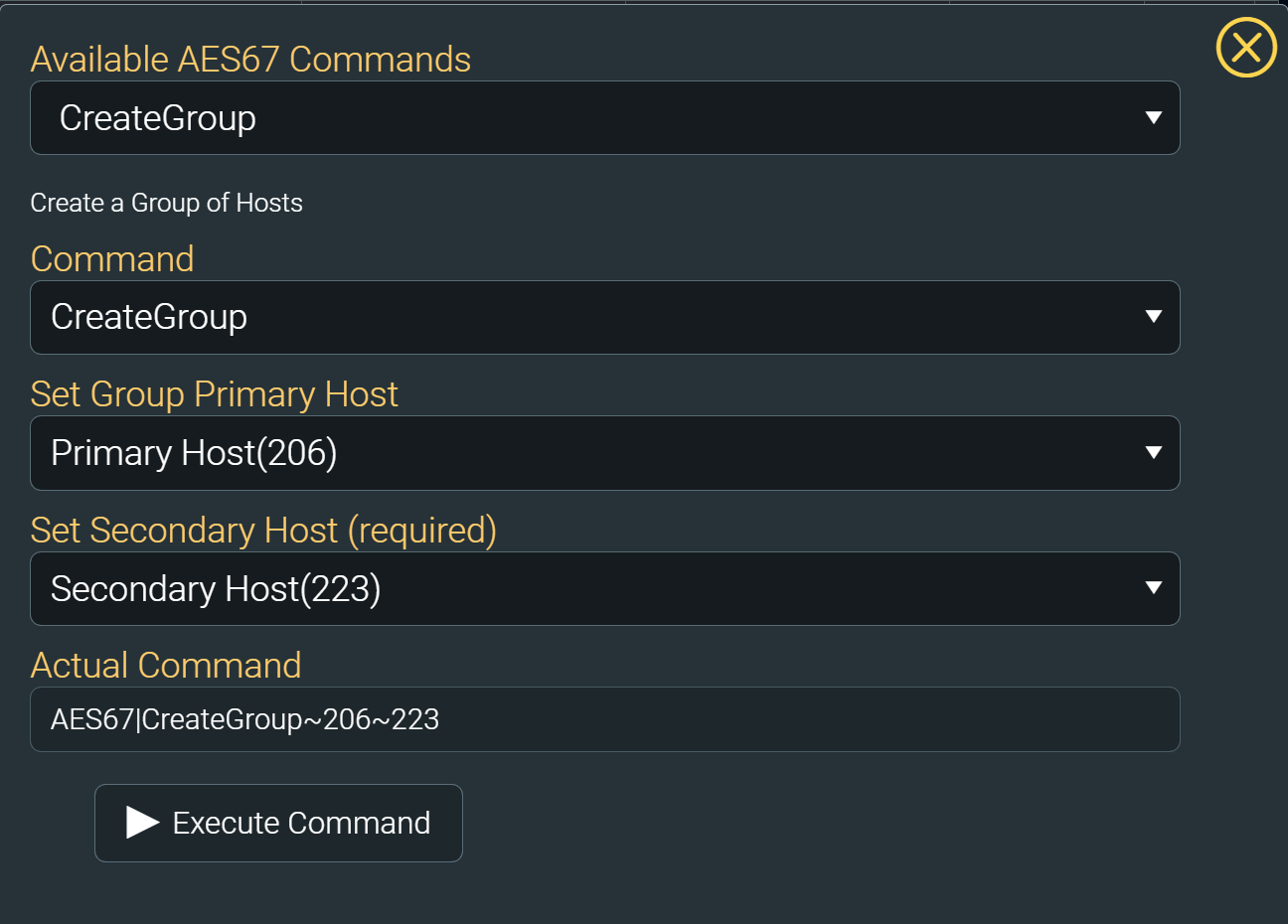
Displays the volume settings for both Inputs and Outputs. It also displays current routing of devices. If you click on the table cells, the routing commands will be sent to those devices. If you have two or more DSP444's setup in Group mode - high recommendation not to change anything in these routings or it will break the group definitions.
Mixing
Click the mixing checkbox. This allows to you put two (or more) sources to one output blended by your Input settings. The volume numbers in each cell are the Mixer volumes. A UI will be developed soon to enable editing those settings.
Network Routing View
All of your AES67 Discovered devices should populate this dynamic table. If your devices are grouped ("two DMX4x4s grouped becomes one 8x8 matrix"), making changes here will change those group definitions.
Subwoofer Support
Subwoofer cross over points, ramp rates, etc are supported within the DSP444 hardware. Contact Allonis to get the Windows configuration application that can set this up as today, those functions are not built into the myServer 6 driver.
Grouping DSP444(s)
To enable multicast routing across subnets, you need to configure both your routers and switches. Here are the two primary methods:
1. Dynamic Method (Recommended for most networks):
On all Layer 3 routers handling the traffic between the 192.168.1.X and 10.10.5.X networks, you must enable a multicast routing protocol like PIM (Protocol Independent Multicast). This allows the routers to build distribution trees and intelligently forward multicast traffic between subnets.
On all Layer 2 switches in the path, you should enable IGMP Snooping. This prevents switches from flooding multicast packets to all ports and instead forwards them only to ports where listeners (like your AES67 speakers) have joined the group.
2. Static Method (Alternative, less flexible):
As an alternative, you can configure static multicast routes on your routers and/or static IGMP joins on the switch ports where your AES67 speakers are connected. This manually tells the network devices, "Always forward multicast group X to this port/subnet."
With the dynamic method (PIM + IGMP Snooping) correctly configured, multicast packets from the 192.168.1.X subnet will indeed be routed to receivers in the 10.10.5.X subnet.