• Try Us Out - See our Demo Tabs Above

    Sports Bars

    Experience our Sports Bar TV, Audio and Lighting Control System with our awesome demo! We provide multiple TV control systems that will easily integrate your Audio/Video and environmental components into one easy to use package. Let multiple hand-held remotes be a thing of the past and experience hassle free one-touch control. With the versatility of myServer 6, you may be able to retrofit existing equipment into the control system which makes it economical to get the most value out of your technology investment.

    Residential

    With a whole new exciting look and feel our transparent "Moonlight" user interface allows clarity and ease in maneuvering your lighting floor plan, climate control, security cameras, and security keypad as well as entertainment options. Control all aspects of your home with simplicity and confidence.

    Digital Signage

    Allonis makes it easy to control and launch your media content. We have created software that ties in seamlessly to your bar or restaurant control system. Upload new images and videos, discard old ones, decide what to play or post and where with just a few selections.

  • Sports Bar & Restaurant Demo

    Select a source on the left and then select the TVs you would like to change on the right.

    Along the bottom are options for a DirecTV remote, TV Guide, Audio, Favorites & AppleTV. In addition you can touch the video camera on the left hand source options to get a live preview of what's playing on that source. Be sure to click around and try everything.

    Read More


    Customer Listening Experience

    Pan from left to right and up and down to see all the TVs.

    Customers can select the TV closest to them to tune in to the audio.

    Read More


    No Floorplan Option.

    If you are not interested in a navigable floor plan we can provide a generic interface instead.

    The same features are supported.

    Read More
  • Residential Demo

    Below is our residential simulation.

    Be sure to click around and try everything. Read more about the UI below.

    Read More
  • Digital Signage

    In the large window select a player on the left. Then select an option layout on the right. Select available assets from the list provided. You can add a ticker of either a message or weather by checking the boxes. When you are finished making selections click “send to player”. Your choice will appear on the corresponding player above. To pause a video click the player once.

    Read More
  • SmartRemote Demo

    Below is our SmartRemote simulation.

    Be sure to click around and try everything. Read more about the UI below.

    Read More

Our Products

See the latest myServer 6 products, available for individual purchase or part of a custom Allonis system built especially for your project.
Software
Hardware
Sports Bars
Services

myServer 6 supports DMX professional lighting systems.  Typically used for highly reliable, responsive, stage lighting and commercial lighting tasks.


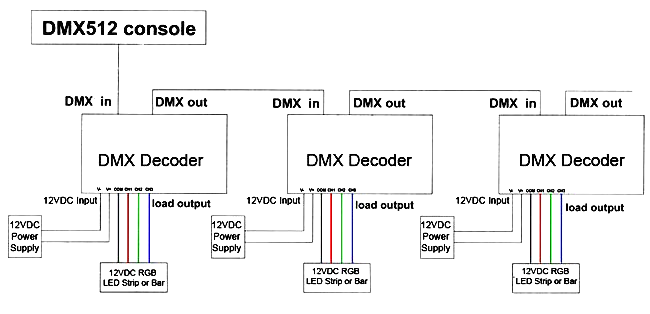
Below is a typical wiring diagram for how the lights would be wired for DMX control.

The "DMX512 console" is an Art-Net IP device.

myServer 6 ArtNetDMX driver then communicates via TCP to the DMX512 console.


So:

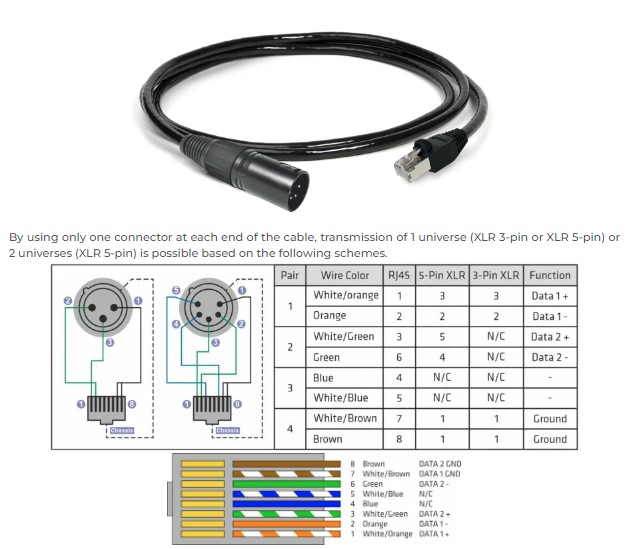
myServer 6 controller <> CAT5<>Ethernet Switch <> CAT5 <> ArtNetDMX controller (supplied by Allonis) <> DMX communications wiring (typically 3 pin)


2DMX 3H4A

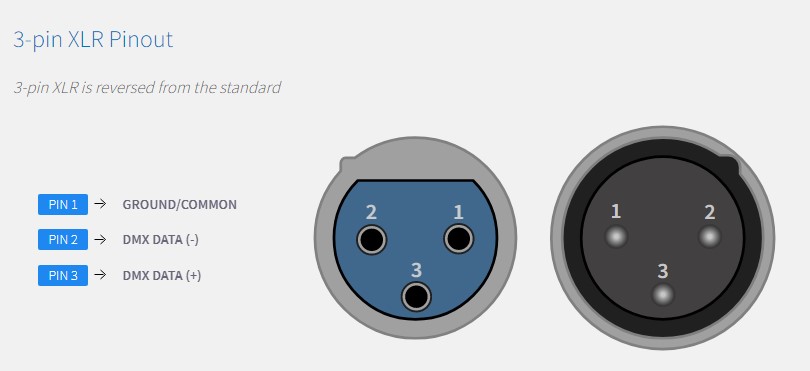
3Pin XLR 1


Wiring of DMX via CAT5/6 cable to RJ45
3Pin XLR RJ45 1
 
So, here is the chain of devices:
myServer 6 controller (typically 1U rack mount computer) > ethernet network > ArtNet DMX controller > 3 pin wiring adapter > DMX / RGB controller > 0-10 volt light control circuit connections (or RGB lights).


The power supply must be a compatible voltage for the fixture and be sized to handle the total wattage of the light load.

Fixtures can be RGB, RGBW or just simple white (one fixture per channel).

Each DMXDecoder has a DMX address within the DMX "Universe".

A DMX Universe supports up to 512 addresses.

Allonis sells DMX Art-Net controllers that support from 1 to 4 Universes.  An unlimited number of ethernet Art-Net controllers are supported by myServer 6 for expansion.

myServer 6's DMX Art-Net controller can coexist on the DMX network with a conventional DMX control panel if required.

myServer 6's automation capability can then orchestrate an unlimited number and type of lighting scenes triggered by time, weather, motion, switches, day of the year (holiday lighting), etc.


Allonis sells myServer 6 controller, Art-Net DMX Controllers, DMX Decoders, power supplies and RGB lighting strips.  For custom fixtures, have Allonis engineer the system with your lighting engineer.


DMX Lighting EXAMPLE

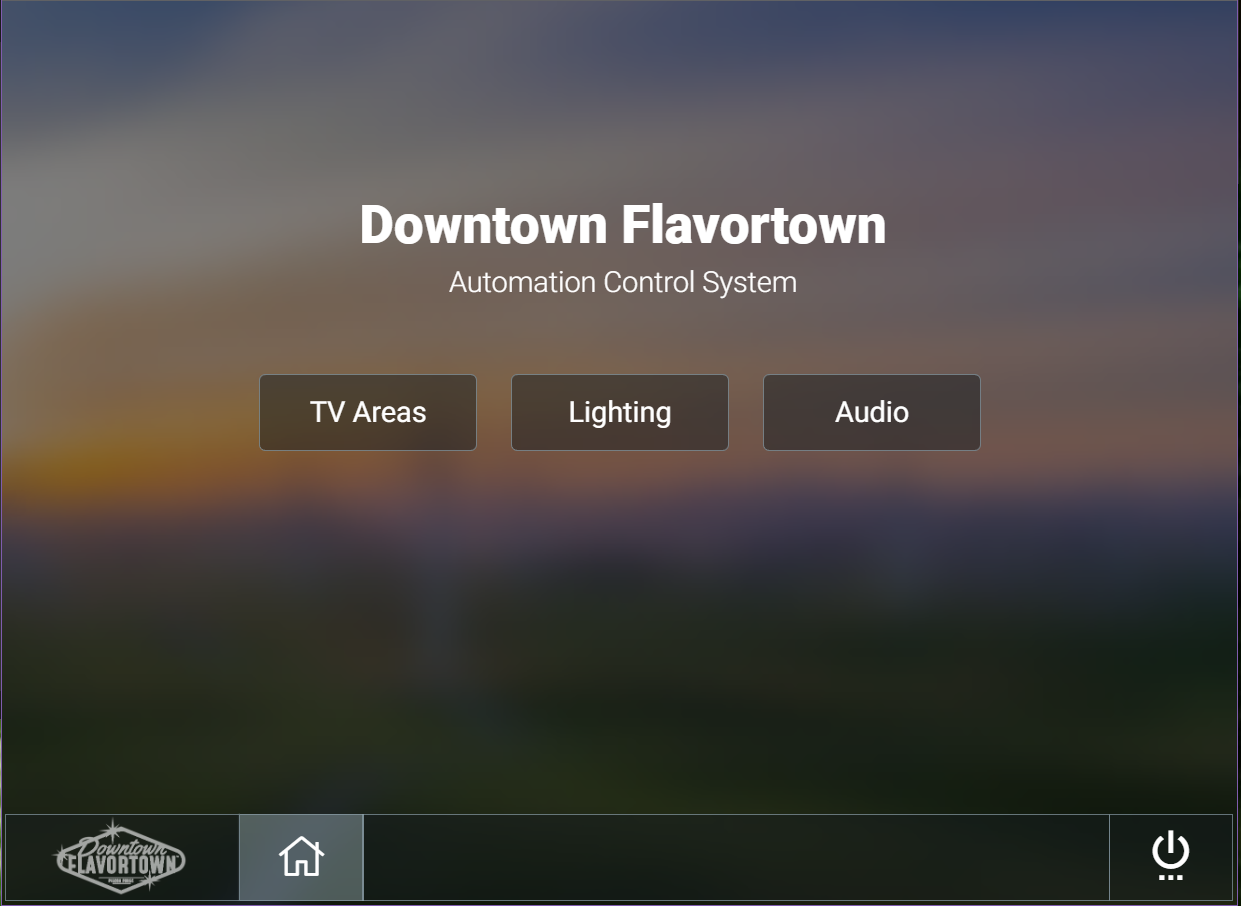
User clicks on lighting button.
Lighting-Presets-1.png

This takes them to the lighting page. The list on the left is a dynamically created scrolling list of DMX lighting groups as defined by the customer.
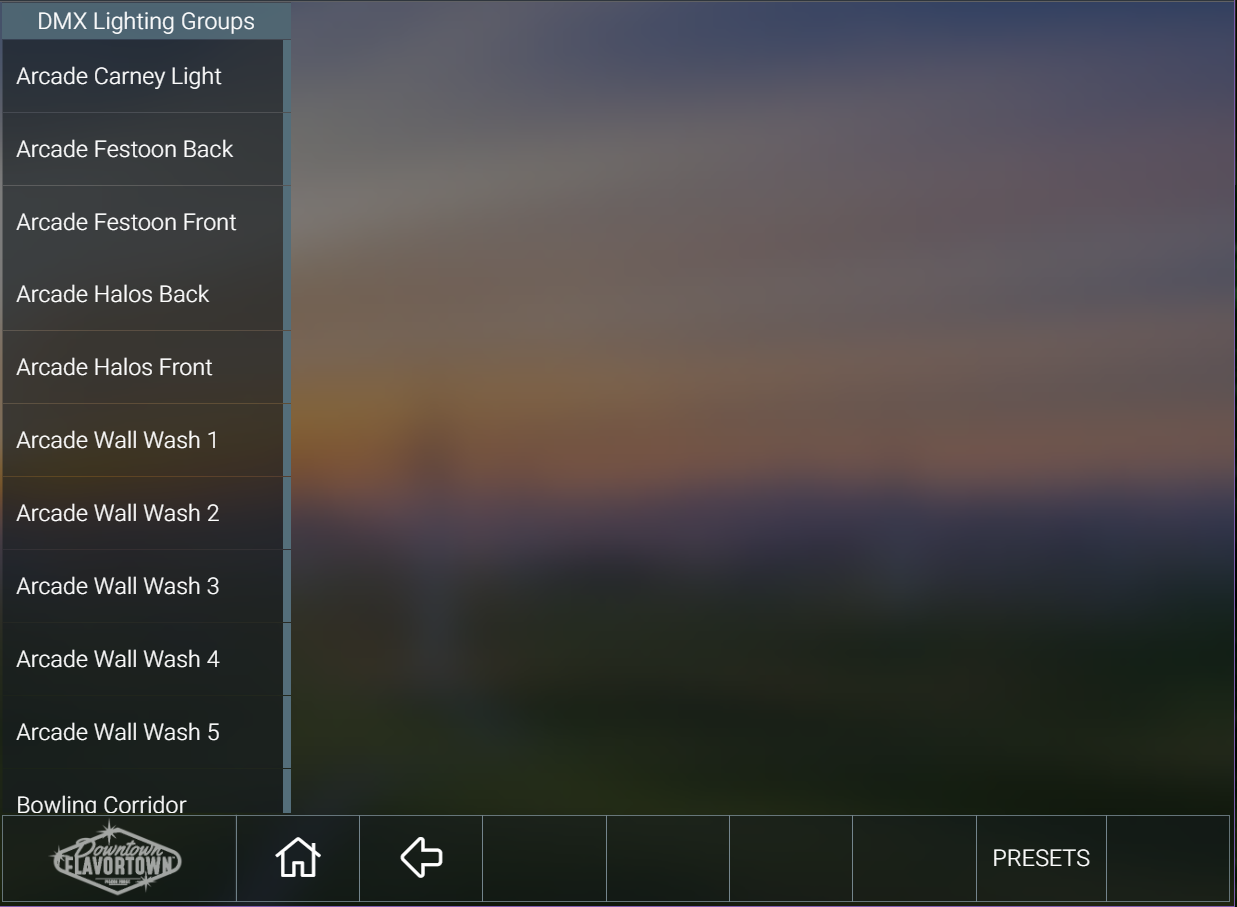
Lighting-Presets-2.png

Selecting one of the groups exposes a new secondary list. This is a scrolling list of all the individual lights that are part of that group.
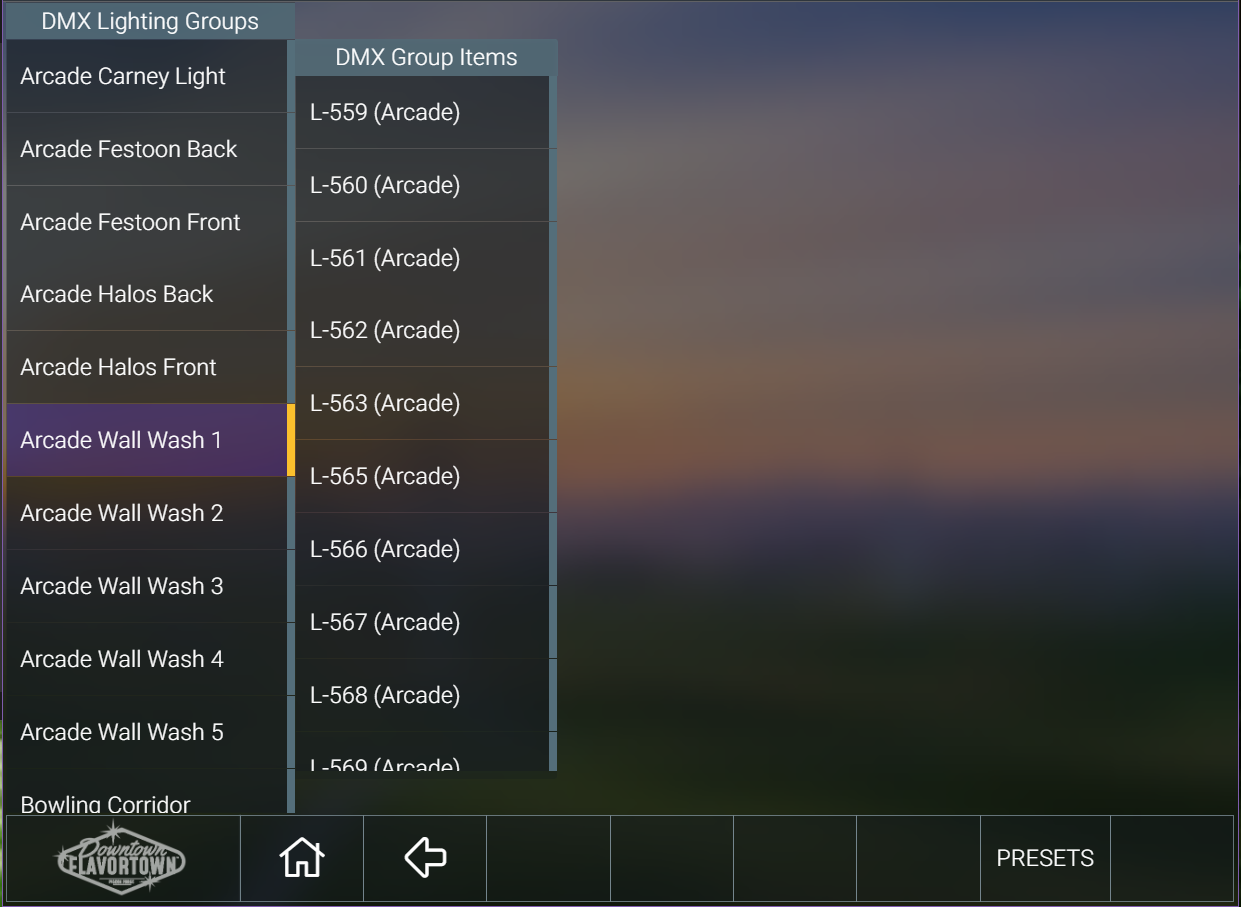
Lighting-Presets-3.png

Selecting one of the lights in the secondary group brings up the lighting mixer. The number of sliders displayed will change depending on the capabilities of the individual light. The user can now individually adjust each light in the group to match the scene they are trying to create.  Repeat for all lights in the group.
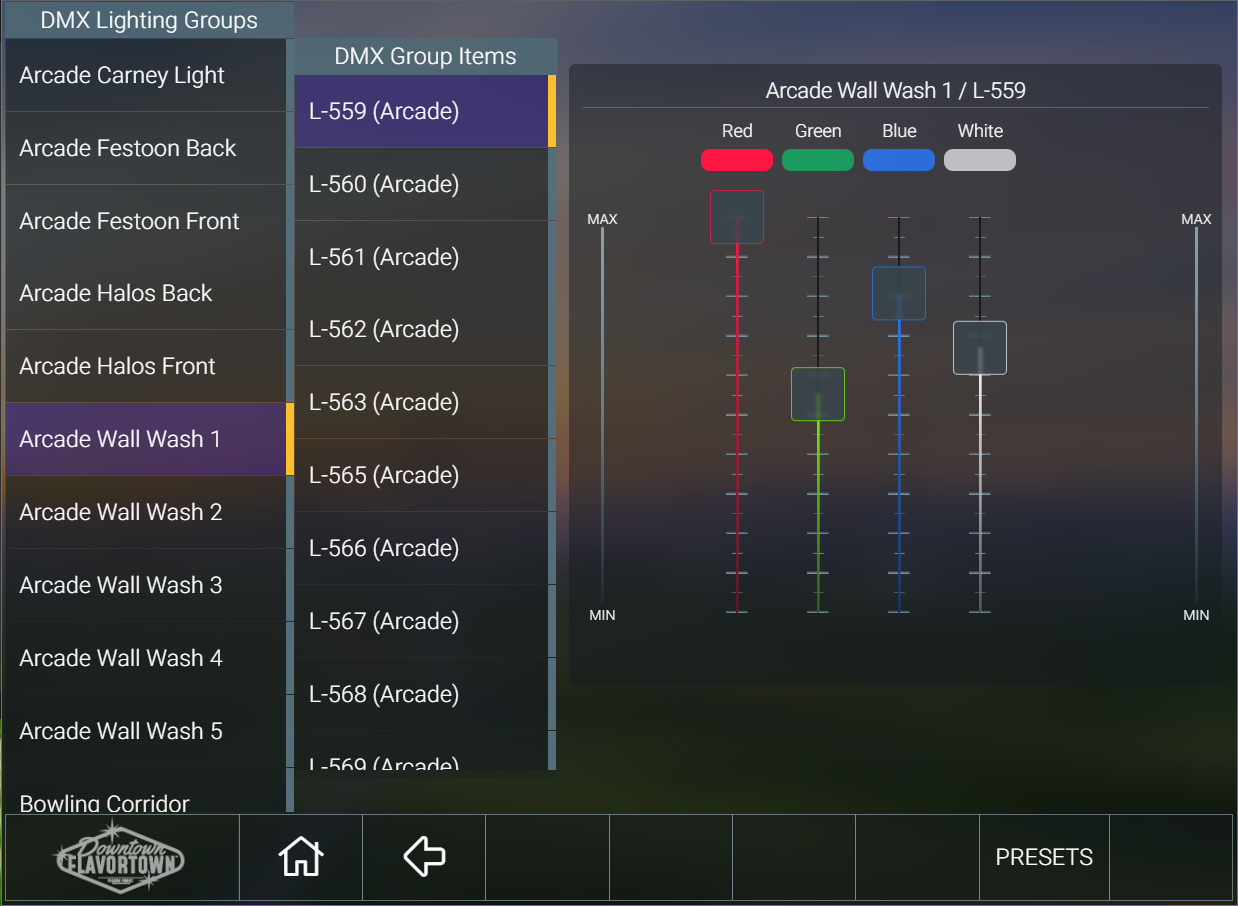
Lighting-Presets-4.png

When the user is happy with how the individual lights are adjusted they can now assign them to a preset. Pressing the presets button on the navigator will pop up the list of defined presets for that group. If no presets have been previously assigned a new preset called “Preset #1” will automatically be created. All presets should be given descriptive names that hint to what it will be used for. To change the preset name click on the blue pencil button next to the name. Continue to next image…
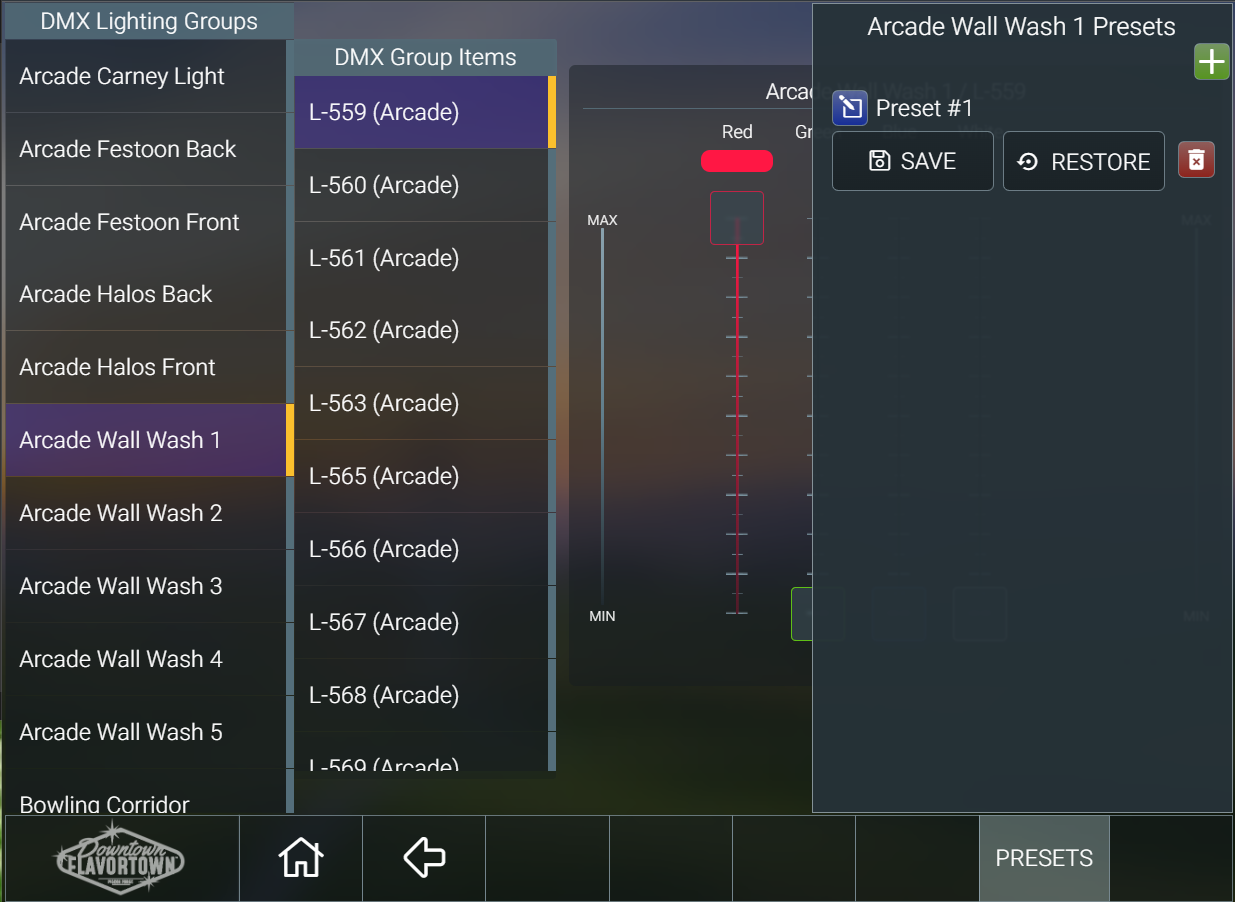
Lighting-Presets-5.png

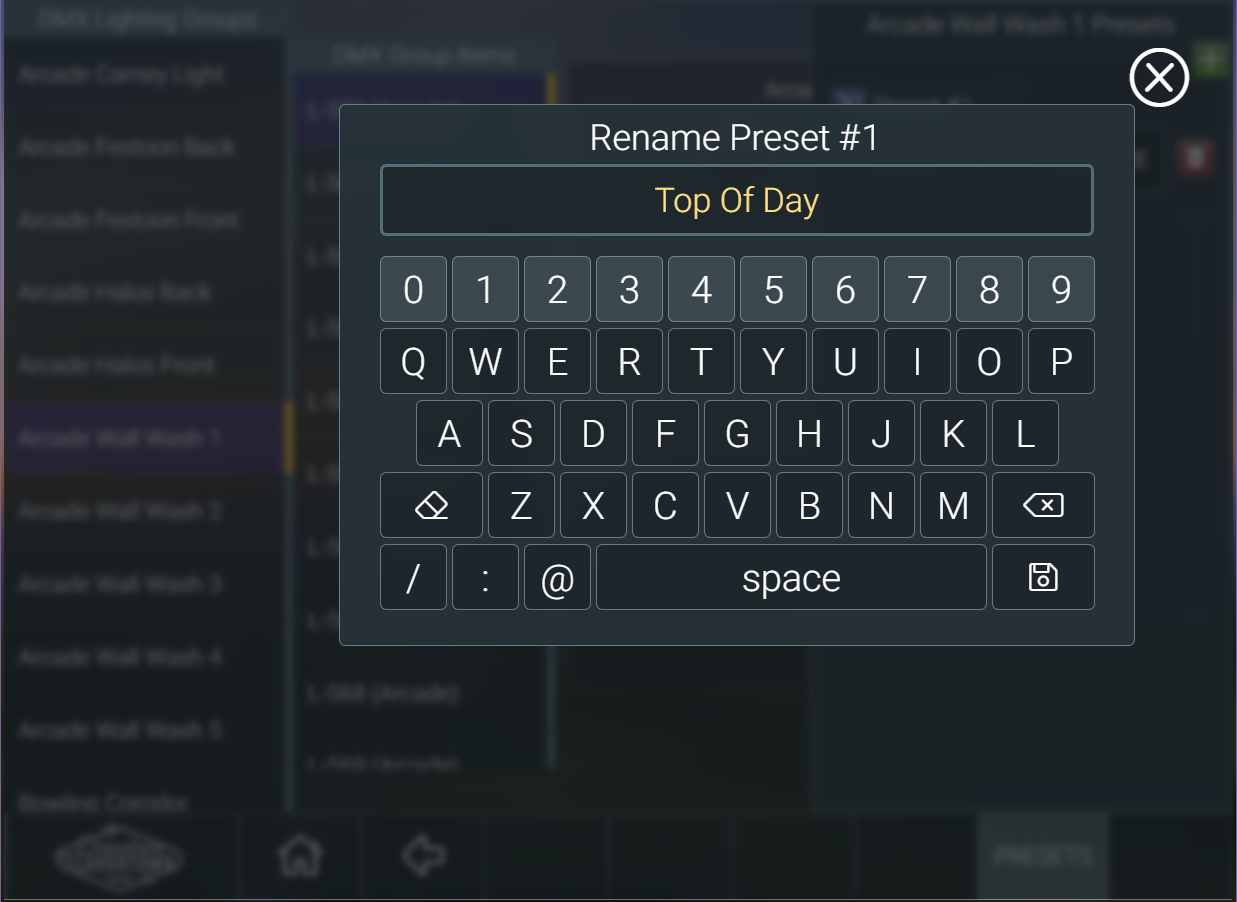
A popup keyboard will appear and the user can now punch in the new descriptive name. Press save to commit the changes or click on the Circle-X to cancel. Next image…
Lighting-Presets-6.png

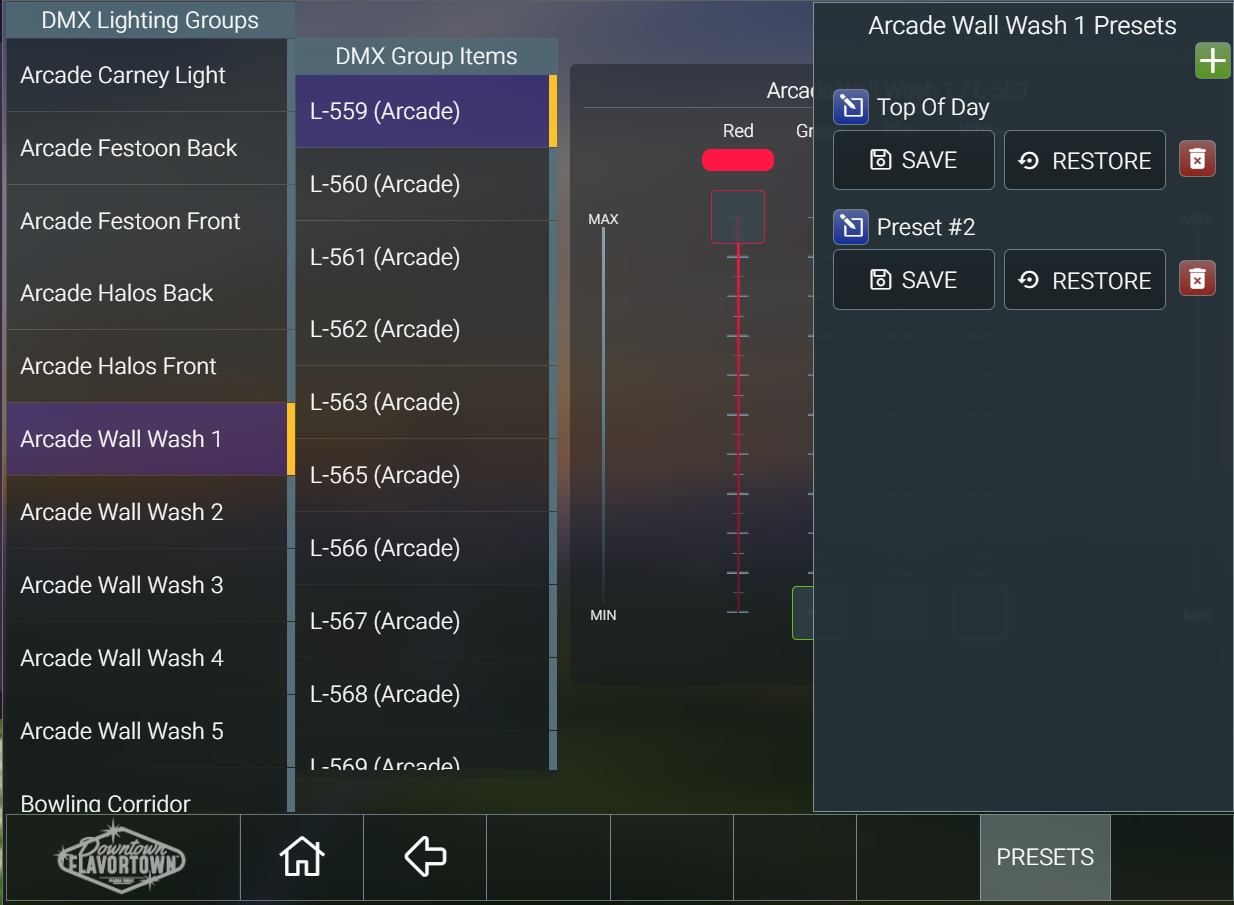
Similarly if the user wants to create a new preset they need to click on the green plus button. This will automatically add a new preset to the list with a default name. They would do the same renaming exercise as above to give this new preset a distinctive name. There is no limit to the number of presets that can be created. All the lists are dynamically created.
Lighting-Presets-7.png

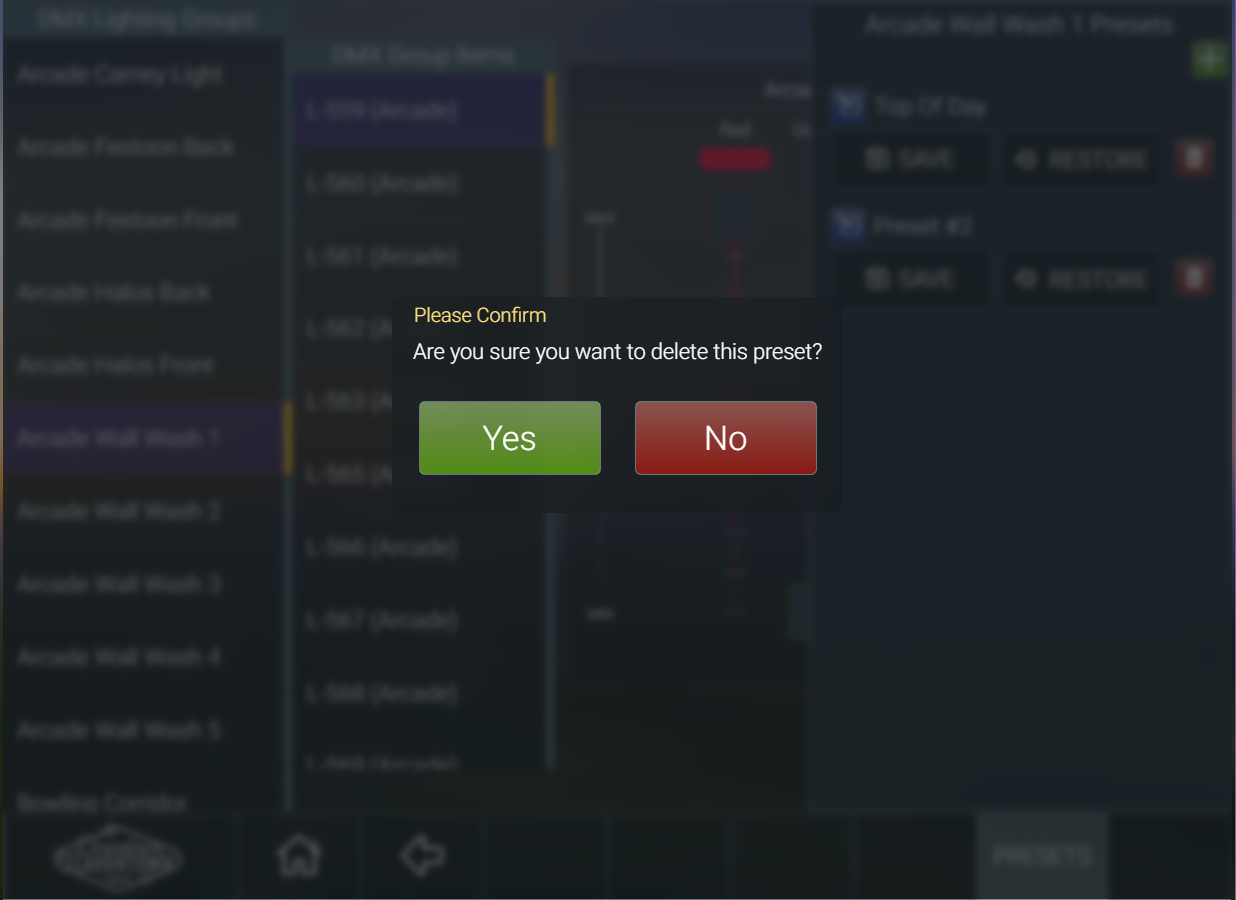
Deleting a preset occurs when the user clicks on the red trashcan button. The user is presented with a dialog where they have to confirm the delete. If they answer yes the preset is removed.
Lighting-Presets-8.png

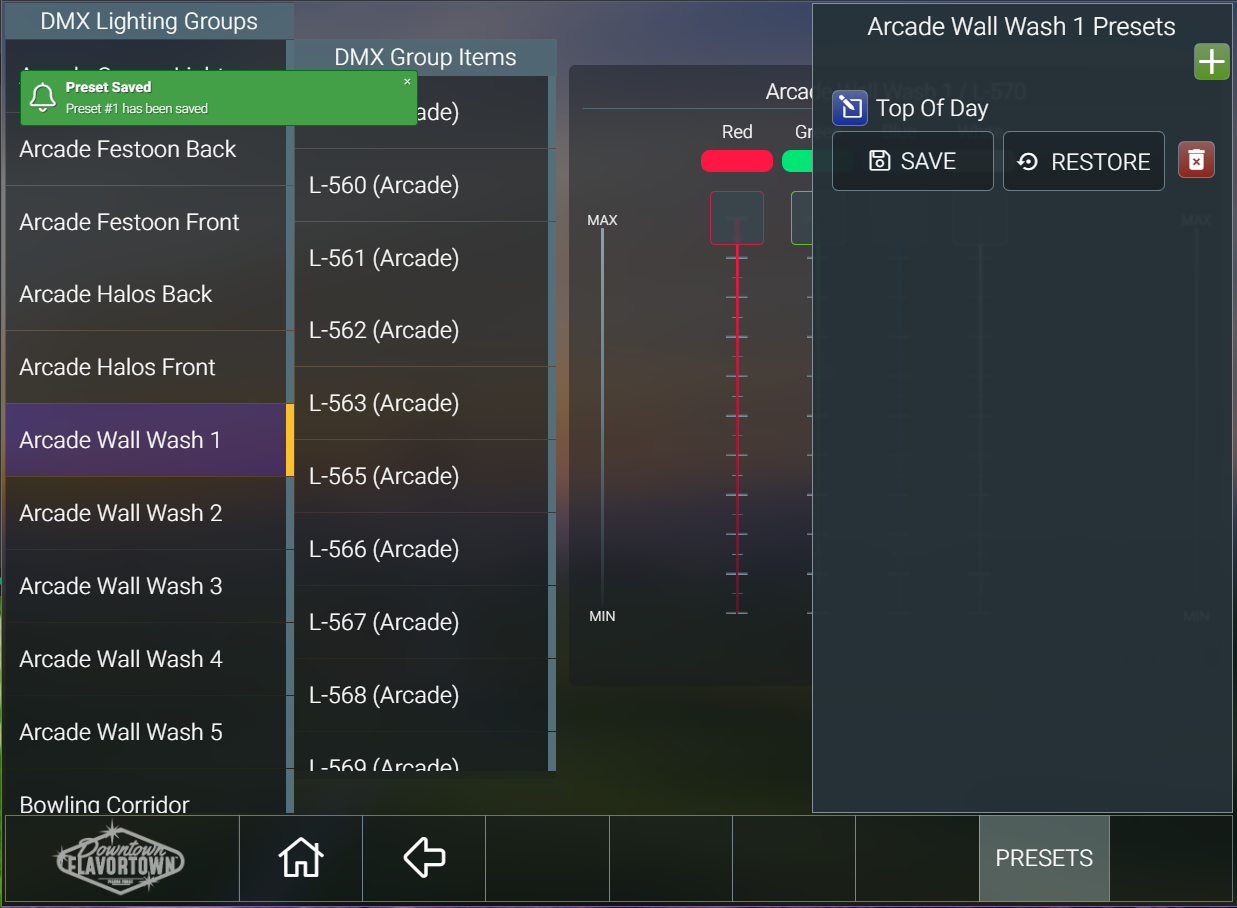
To save the preset click on the save button. The states for all the lights in the group are then captured and stored in the database under that group and preset name. A toast message is shown when he save process has finished.
Lighting-Presets-9.png

Restoring the preset is just as easy. Click on the restore button under the preset you want to restore and all the lights in the group are returned to the state they were in when the preset was originally saved.
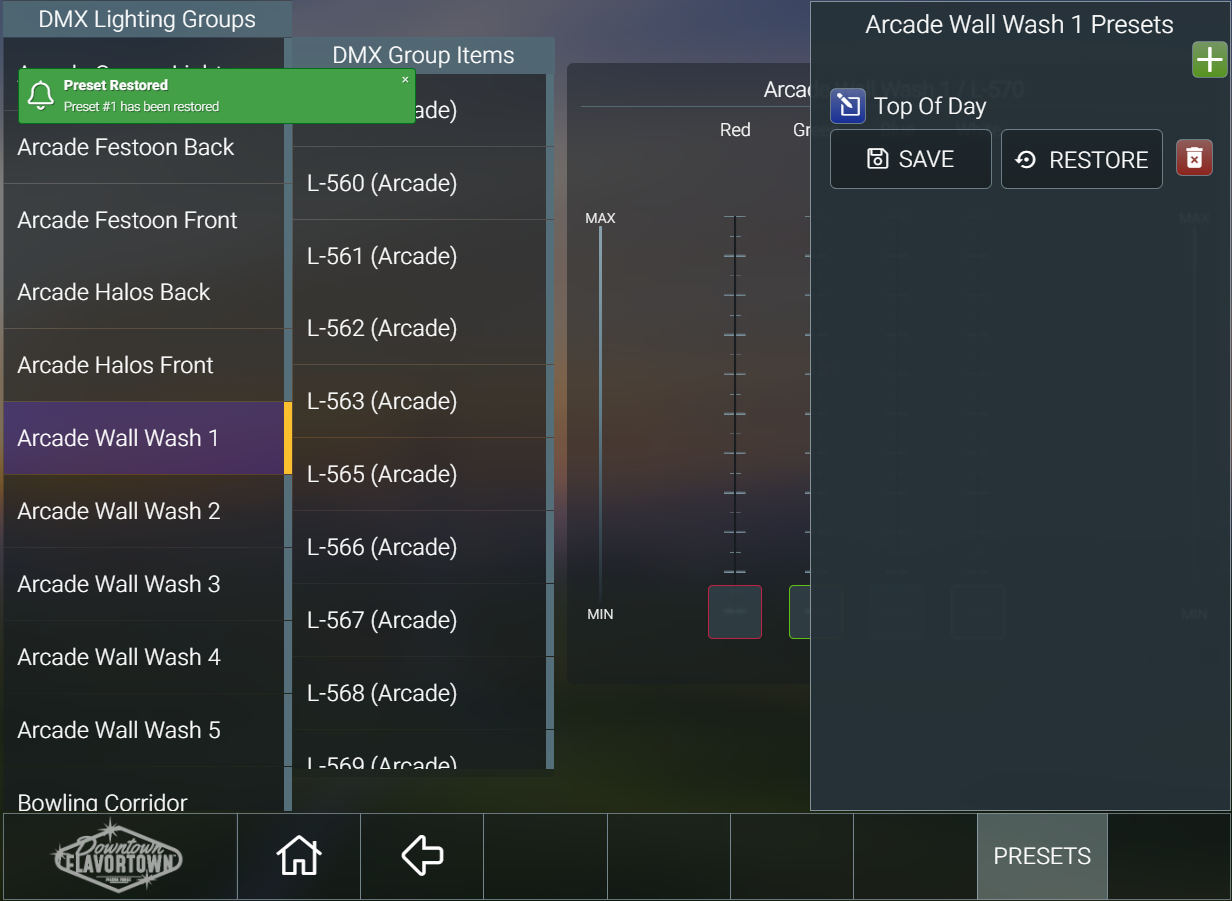
Lighting-Presets-10.png

Makes sophisticated lighting easy enough for an non-technical users.


DMX cable wiring:


DMX512 CABLE, 5-PIN, FULLY ASSIGNED:
(ACCORDING TO USITT1990)
 XLR 5-PIN To XLR 5-PIN
PIN 1 To PIN 1: GROUND/ SHIELD
PIN 2 To PIN 2: DATA -1
PIN 3 To PIN 3: DATA +1
PIN 4 To PIN 4: DATA -2/ RETURN CHANNEL
PIN 5 To PIN 5: DATA +2/ RETURN CHANNEL
 DMX And MIDI Wiring Diagram - DMX512 CABLE, 5-PIN, FULLY ASSIGNED XLR 5 Pin To XLR 5 Pin


DMX CABLE 5-PIN, PARTIALLY ASSIGNED:
XLR 5-PIN To XLR 5-PIN
PIN 1 To PIN 1: GROUND/ SHIELD
PIN 2 To PIN 2: DATA-
PIN 3 To PIN 3: DATA+
PIN 4 To N.C.
PIN 5 To N.C.
 DMX And Midi Cable Wiring Diagram - DMX CABLE 5-PIN, PARTIALLY ASSIGNED XLR 5 Pin To XLR 5 Pin


DMX ADAPTER CABLE, PARTIALLY ASSIGNED:
(ACCORDING TO USITT1990)
XLR 5-PIN To XLR 3-PIN
PIN 1 To PIN 1: GROUND/ SHIELD
PIN 2 To PIN 2: DATA-
PIN 3 To PIN 3: DATA+
PIN 4 To N.C.
PIN 5 To N.C.
DMX And MIDI Cable Wiring Diagram - DMX ADAPTER CABLE, PARTIALLY ASSIGNED - XLR5 Pin To XLR 3 Pin 


DMX CABLE 3-PIN, PARTIALLY ASSIGNED:
(ACCORDING TO USIT1990)
XLR 3-PIN To XLR 3-PIN
PIN 1 To PIN 1: GROUND/ SHIELD
PIN 2 To PIN 2: DATA-
PIN 3 To PIN 3: DATA+
 DMX And MIDI Cable Wiring Diagram - DMX ADAPTER CABLE, PARTIALLY ASSIGNED - XLR 3 Pin To XLR 3 Pin