



Allonis HDCP 2.3 / 2.2 to HDCP 1.4 Converter / Downgrader
Contents:
- 1 - HDCP 2.3 & 2.2 to 1.4 HDMI Converter
- 1 - 5V 1A DC Adapter, but normally not used as it is powered by the source device, so the AC adapter may not be required
- 1 - User Manual
No HDMI 2.0? No HDCP 2.3 or 2.2 input on your 4K UHD display? No Problem! Play HDCP 2.2 protected content such as movies, games, satellite/cable, and internet videos on any TV/UHDTV/Projector or Monitor.
This is bad news for consumers who have purchased expensive, high-bandwidth, processor-rich switchers and receivers to accommodate 4K. While the newer products may support the bandwidth needs of 4K, they wont play copy-protected works until Allonis HDCP 2.3 / 2.2 to HDCP 1.4 Converter is an active part of the setup.
If your TV, monitor, projector or video distribution matrix cannot play HDCP 2.2 content because it lacks of a HDCP 2.2 compliant input, our HDCP 2.2 to HDCP 1.4 Converter will solve your issue!
HDCP stands for "High-bandwidth Digital Content Protection". HDCP requires that each HDMI connection establish a unique link between the two devices, often called a handshake. This "handshake" trades encrypted codes between the devices so that you can't plug your Blu-ray player into a recorder and rip a copy. Many of the problems that we hear people having with their HDMI devices comes from this handshake failing.
HDCP 2.3 and 2.2 is all about protecting 4K content. That means if you want to stick with 1080p for the time being, you don't have to worry about HDCP 2.3 / 2.2. If you do want 4k content, every device in your video chain must have HDCP 2.3 and 2.2. This will be true in the future where content will be HDCP 2.2 encrypted. Non-2.3 and 2.2 encrypted content will not apply.
The problem we've seen is that people are assuming that anything with HDMI 2.0 will have HDCP 2.3 or 2.2. So far, that has not been the case. Our research has shown that there are no devices currently offered that have both a full HDMI 2.0 implementation and HDCP 2.3 and 2.2.
If you are shopping for a 4K display, you'll want to look for HDCP 2.3 / 2.2 compatibility as well as resolution and bit depth or use our HDCP 2.3 and 2.2 to HDCP 1.4 Converter. Match the display's capabilities with the HDMI 2.0 maximums, and you should be good to go. If the display does NOT show HDCP 2/3 / 2.2 compatibility, when native 4K content arrives, your display will not accept it.
On receivers, you'll want to check how many of their inputs/outputs are HDMI 2.0 and HDCP 2.3 & 2.2 enabled. Right now, manufacturers are limiting the maximum number to decrease costs. With limited bandwidth on some HDMI 2.0 terminals and lack of HDCP 2.3 and 2.2 on others, you may have to send video directly from your Blu-ray player to your display (bypassing your receiver) if you buy one of the first generation HDMI 2.0 receivers
Also, the device can also be used to extract audio from your HDMI video source! This works nicely when connected to Allonis's DSP444 analog audio input.
-
Converts HDCP 2.3 to HDCP 1.4
-
Converts HDCP 2.2 to HDCP 1.4
-
Separate Right & Left Audio Output
-
Eliminates Incompatabilitys between source & TVs
-
Supports 4K 60 & Lower Resolutions
-
Supports 8-EDID Modes
-
Tiny Hum Proof Metal Enclosure w/Mounting Clips
-
Top Lettering for a Simple & Fast Install
-
Source powered so you do not need an AC adapter
-
Includes an optional Power Supply, if needed
ver:1.0
HDMI User Manual for Decryption Device
Introduction
The HDMI Decryption Device is a compact 4K video decryption and de-embedding unit. It supports power supply via the 5V output from an HDMI signal source, enables lossless transmission of 4K@60Hz RGB signals, and allows signal frequency adjustment through physical DIP switches. The device integrates HDCP 2.3/1.4 stripping functionality to resolve compatibility issues with encrypted signals, and simultaneously provides a 3.5mm analog audio separation output.
It is suitable for scenarios requiring cross-generation device collaboration, such as radio and television production, medical imaging, and digital signage. It ensures seamless signal connection through hardware-level processing.
Features
Supports HDMI 2.0, with a maximum resolution of 4096×2160@60Hz
| Input | 1×HDMI |
| Output | 1×HDMI, 1×Analog |
| Protocol Standards | Supports HDMI 1.4, HDCP 1.4, HDMI 2.0, HDCP 2.2 |
| Color Space | Supports RGB 444, YUV 444, YUV 422, and x.v.Color standard color expansion |
| Resolution | 640×480 – 3840×2160@60Hz (VESA); 480i – 4K@60Hz (HDTV) |
| Control | DIP Switches |
| Power Supply | DC: 12V 1.5A |
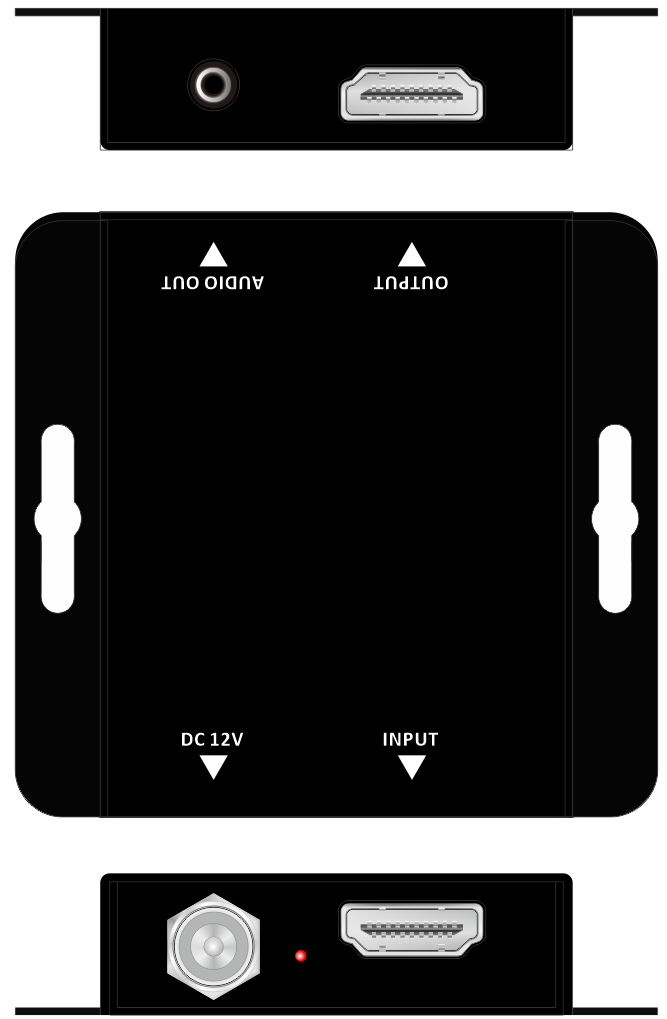
Panel Schematic Diagram / Panel Layout Diagram
| A | 3.5mm Analog Audio Output Port |
| B | HDMI Output Port |
| C | DC 12V 1.5A Power Input Port |
| D | System Indicator Light |
| E | HDMI Input Port |
Product Dimension Diagram
Connection Diagram
DIP Switch Schematic
It supports EDID management, using a 4-pin DIP switch. Pins 1-3 correspond to built-in EDID, and The 4th-pin connector can be used to switch the adaptive backend display resolution or follow the input resolution. If the 4th DIP switch is set to 0, the output resolution will be the same as the input resolution; if it is set to 1, it will automatically adapt to the backend display resolution.
0001:bypass
0011: Indicates DVI-1920×1080P60
0101: Indicates DVI-1920×1200P60
1001: Indicates 1920×1080P60
0111: Indicates 1280×720P60
1011: Indicates 1920×1200P60
1101: Indicates 4K30/2.1 (use this for Allonis 925 Transceivers and DirecTVK models set to 4K30 resolution output)
1111: Indicates 4K60/2.1 (use this for Allonis 935 Transceivers)
Operational Precautions
The device supports power supply via the DC power interface, HDMI input interface, or both interfaces simultaneously.
1.When powering via the DC power interface, you must first connect the DC power supply before connecting the input and output signal sources.
2. When powering via HDMI, the connection sequence is: first connect the HDMI signal source, then connect the HDMI receiving device. If the device is powered on via HDMI but no image is displayed, it may be due to insufficient power supply from the HDMI port. In this case, you need to disconnect all cables and follow the procedure in Item 1.